Services#
To add services to our website, follow these steps:
Step 1: Navigate to the Services Section#
Go to the main panel and select Pages:
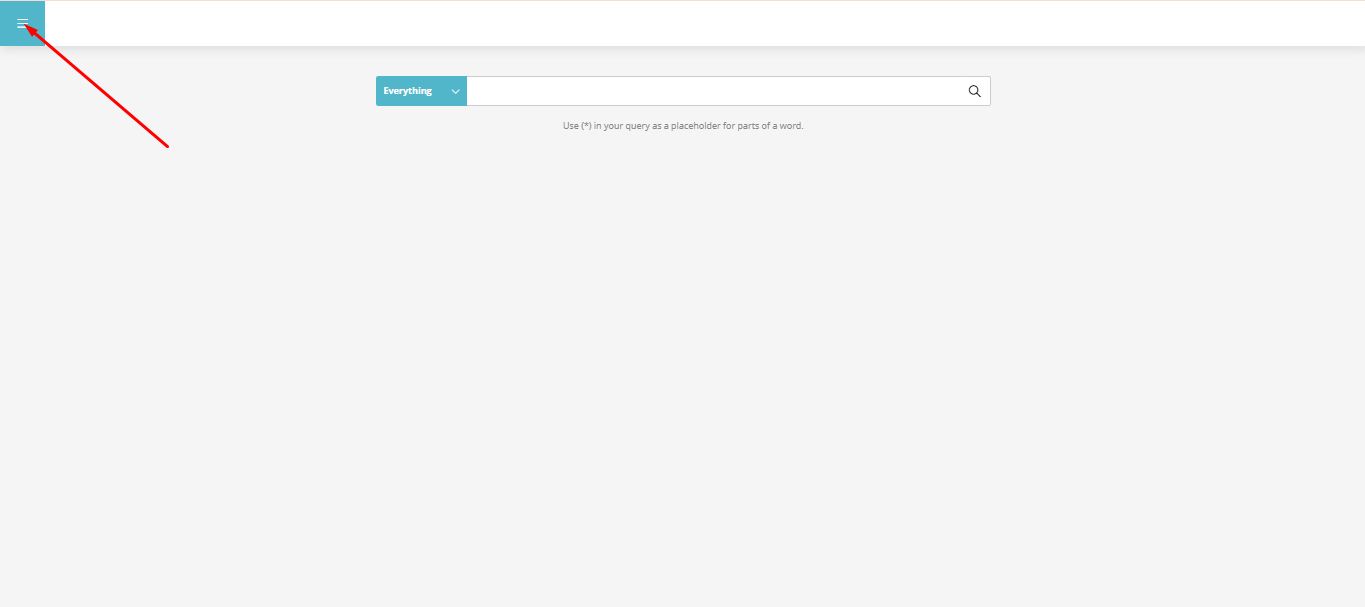
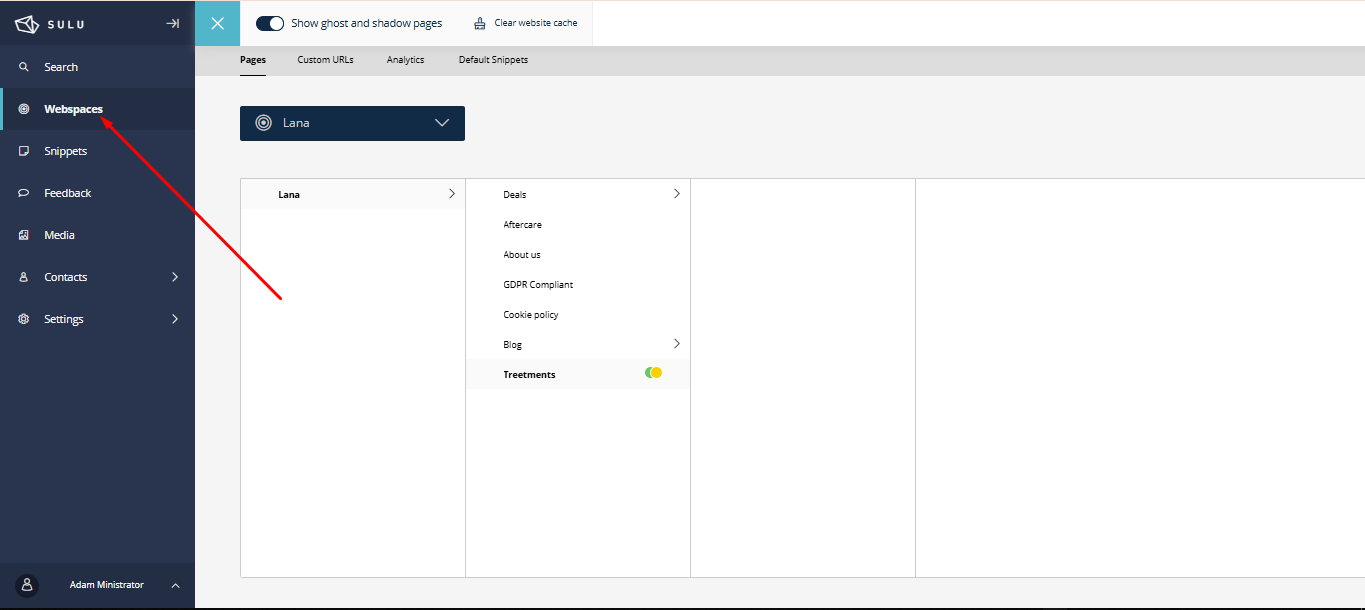
Select the Pages section:
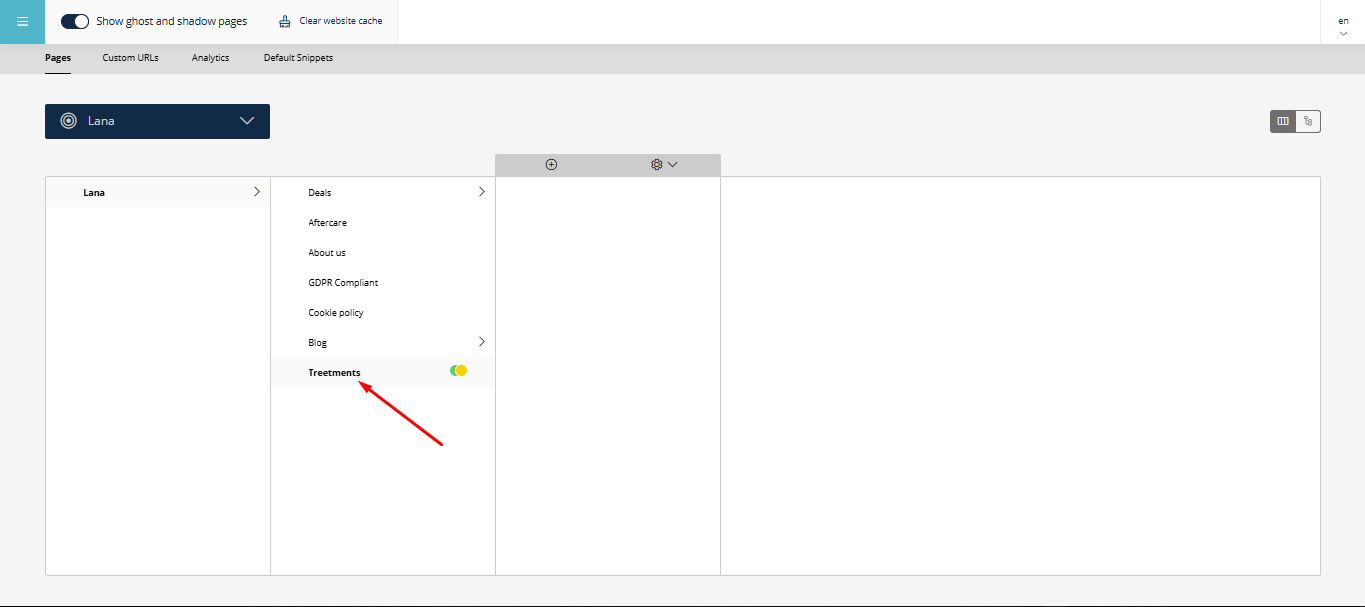
Open the Services page:
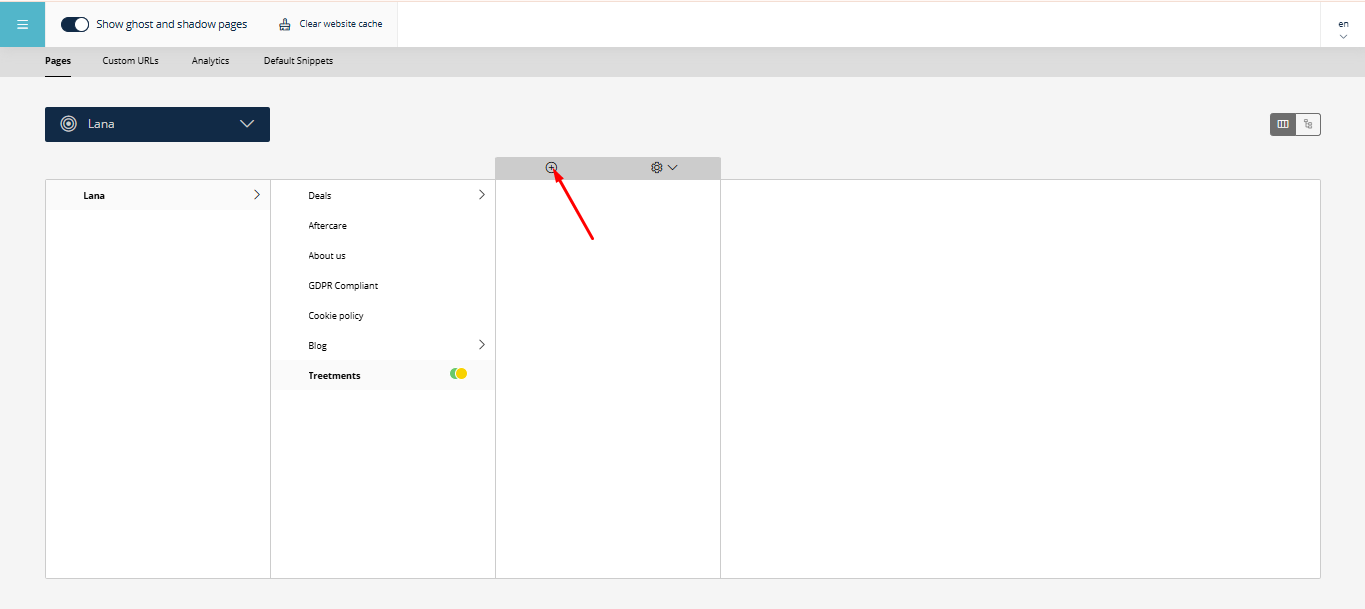
Create a subpage for the new service:
Step 2: Add Content#
Copy the information about the service from existing materials (e.g., templates):
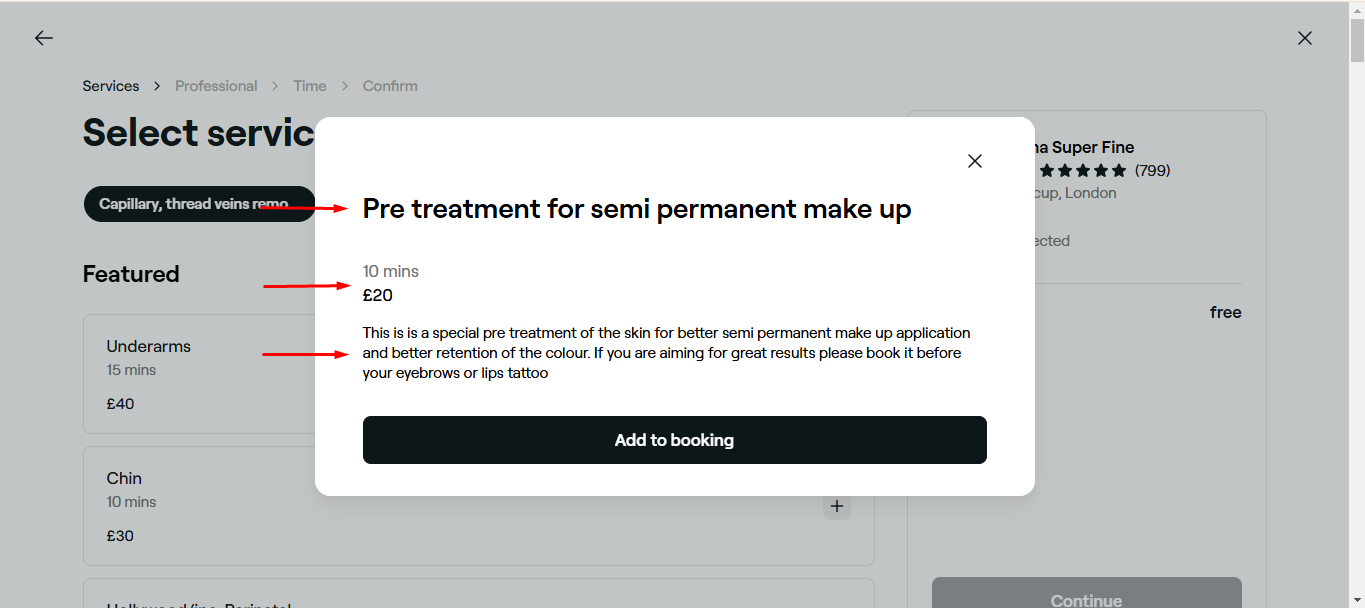
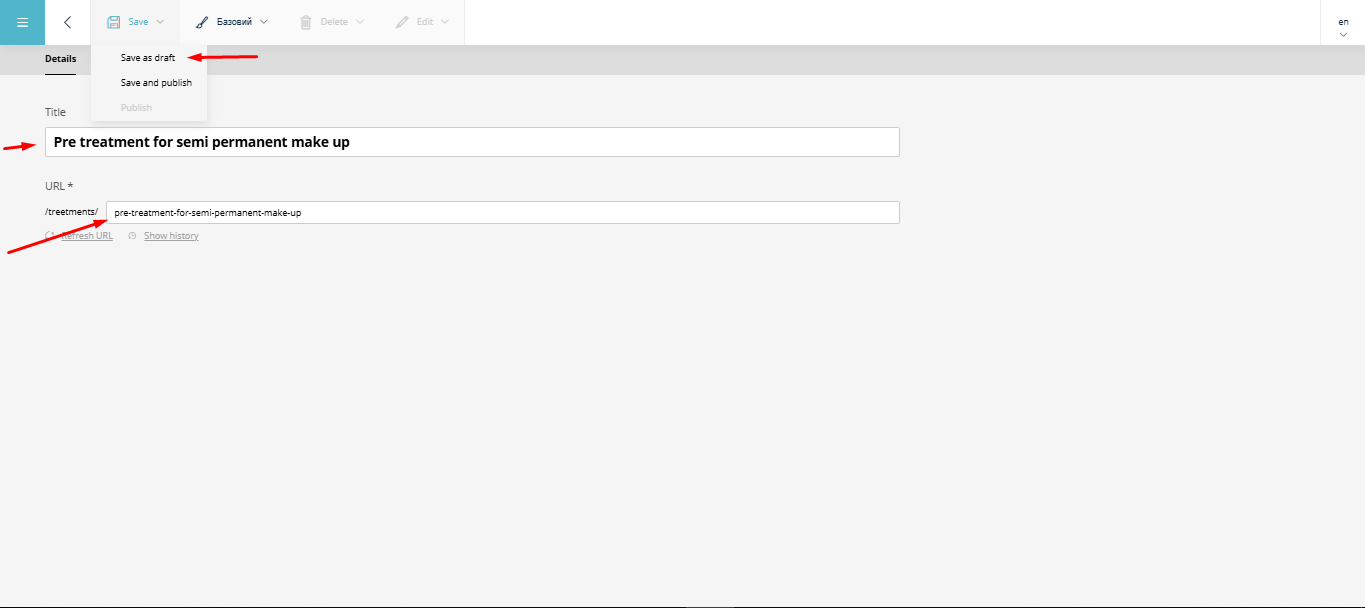
Paste the service title — a link to the new page will be generated automatically.
Save the page as a draft or publish it immediately, depending on your choice:
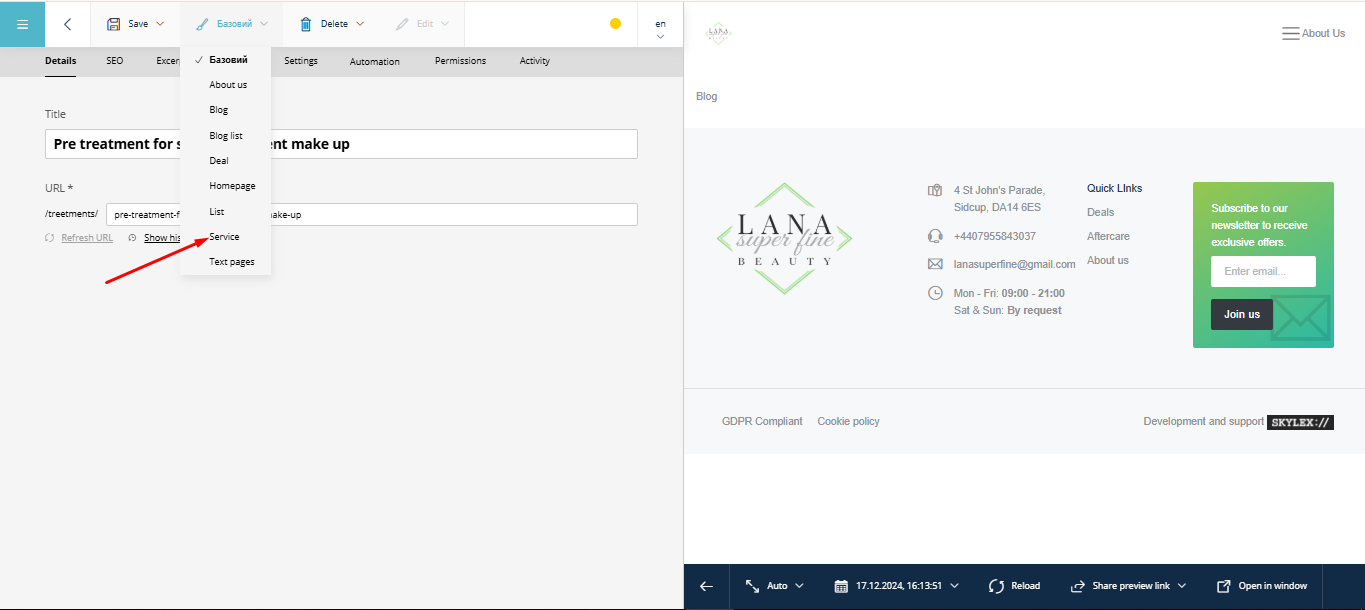
Step 3: Set the Page Type#
Important! Before adding content, set the page type.
For services, select Services as the page type:
Step 4: Fill in the Content#
Add basic information about the service (e.g., from templates):
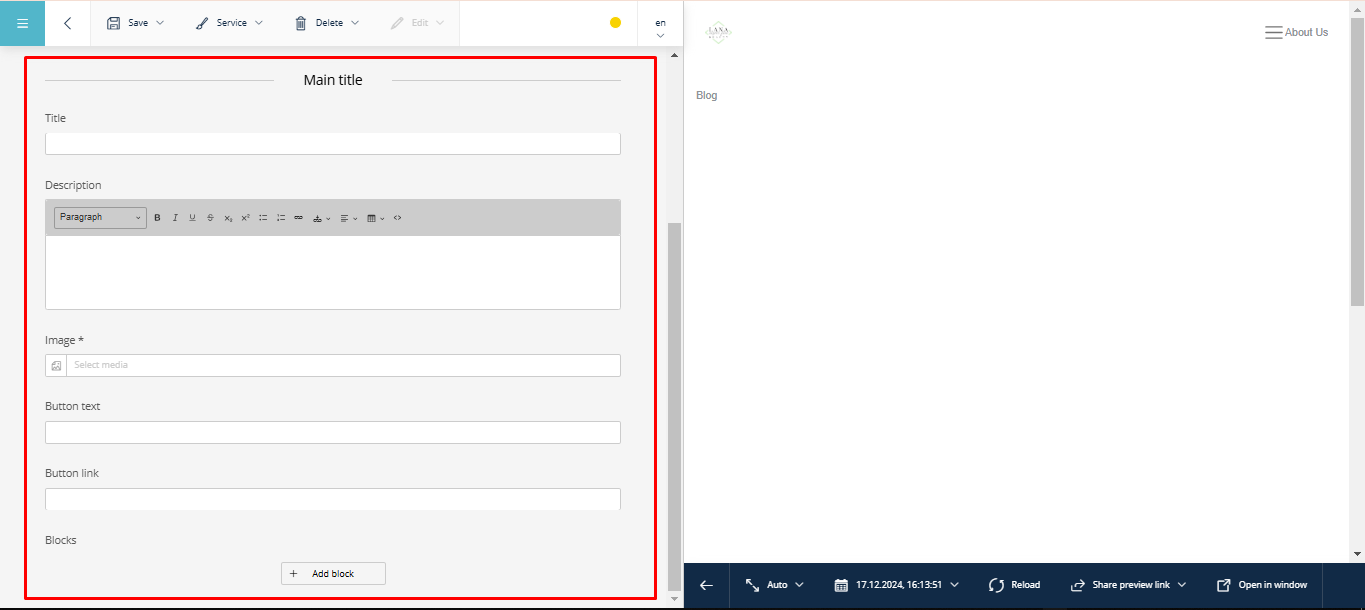
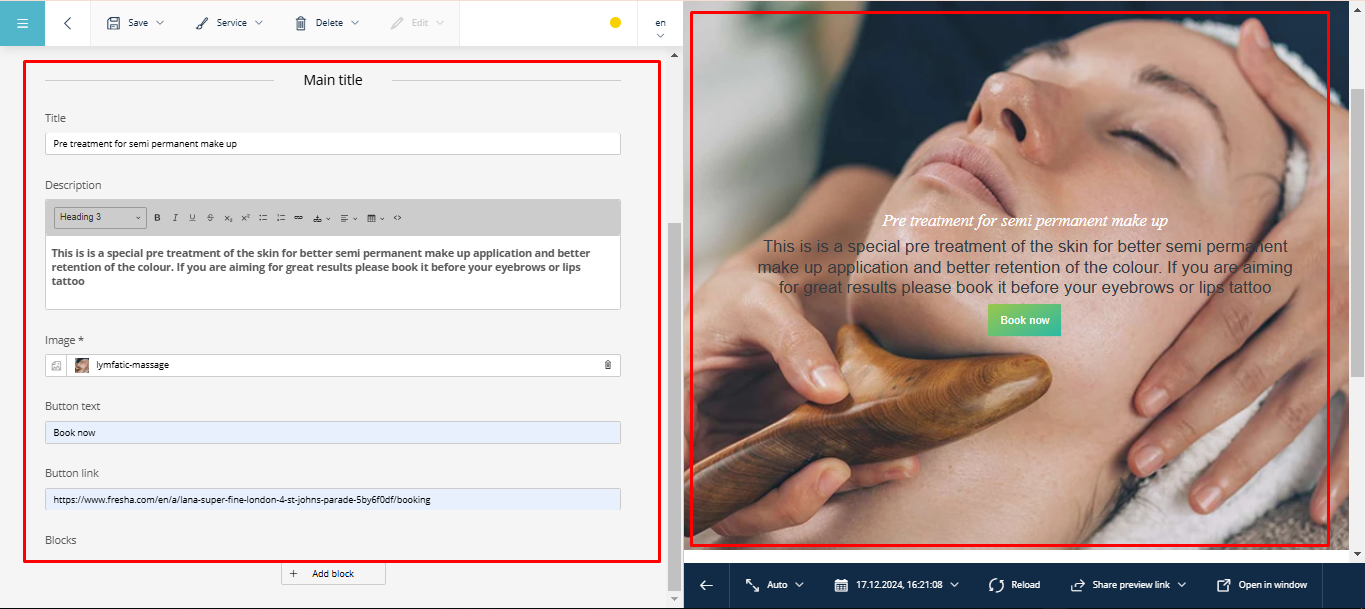
In addition to the main content, you can add various blocks to enhance the page. Below are the available block types:
Block: Video#
Click « Add block »:
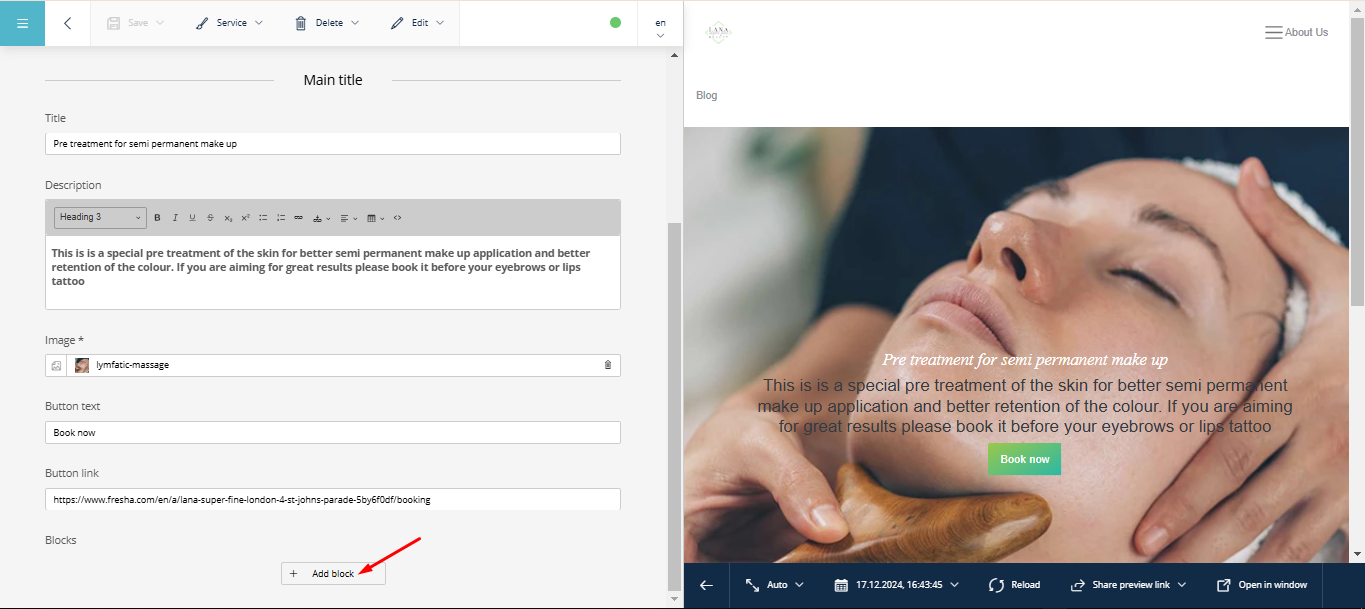
Select the Video block:
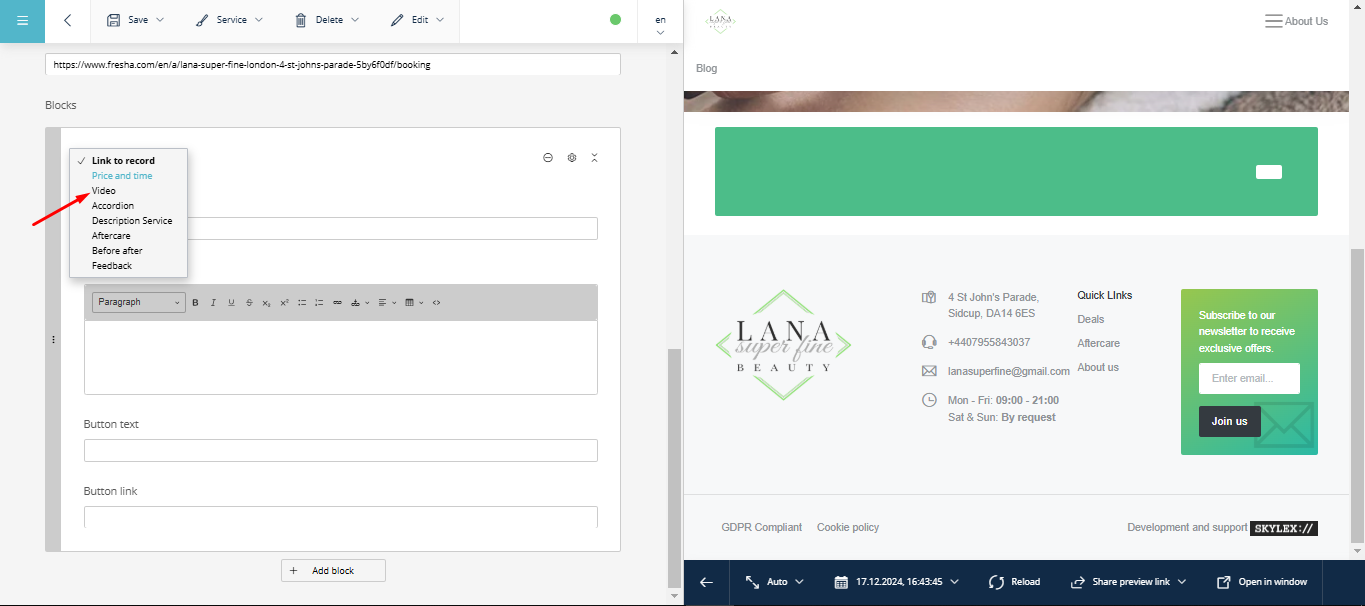
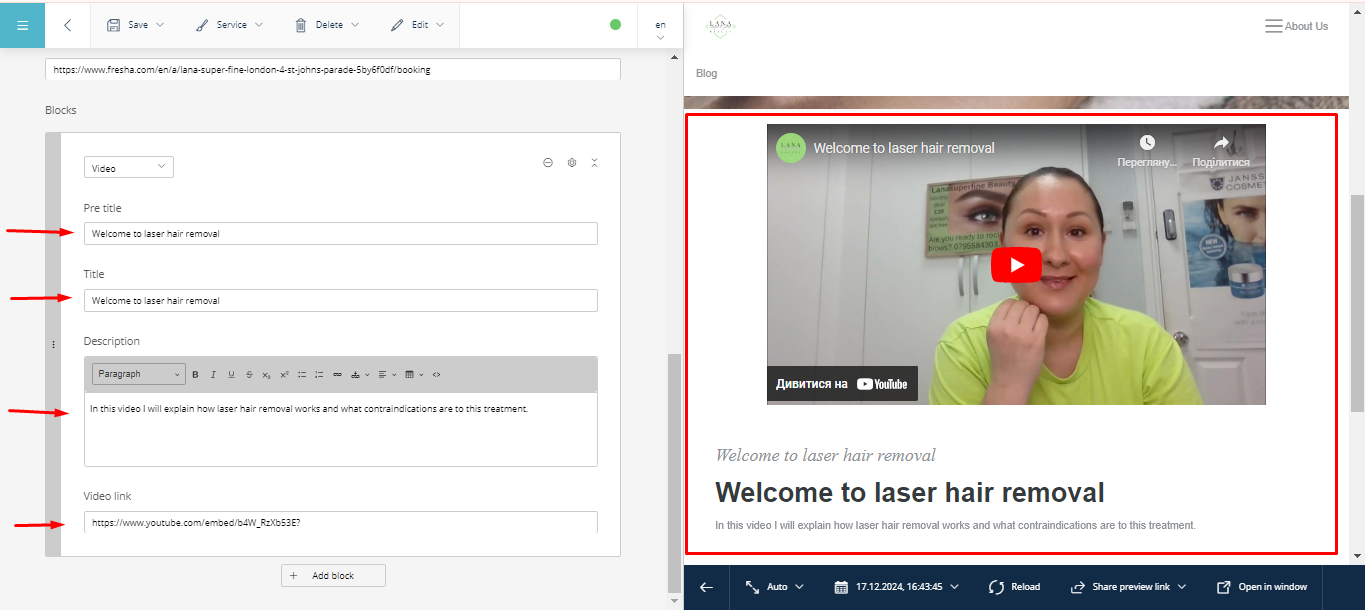
Fill in the required fields and add a YouTube link.
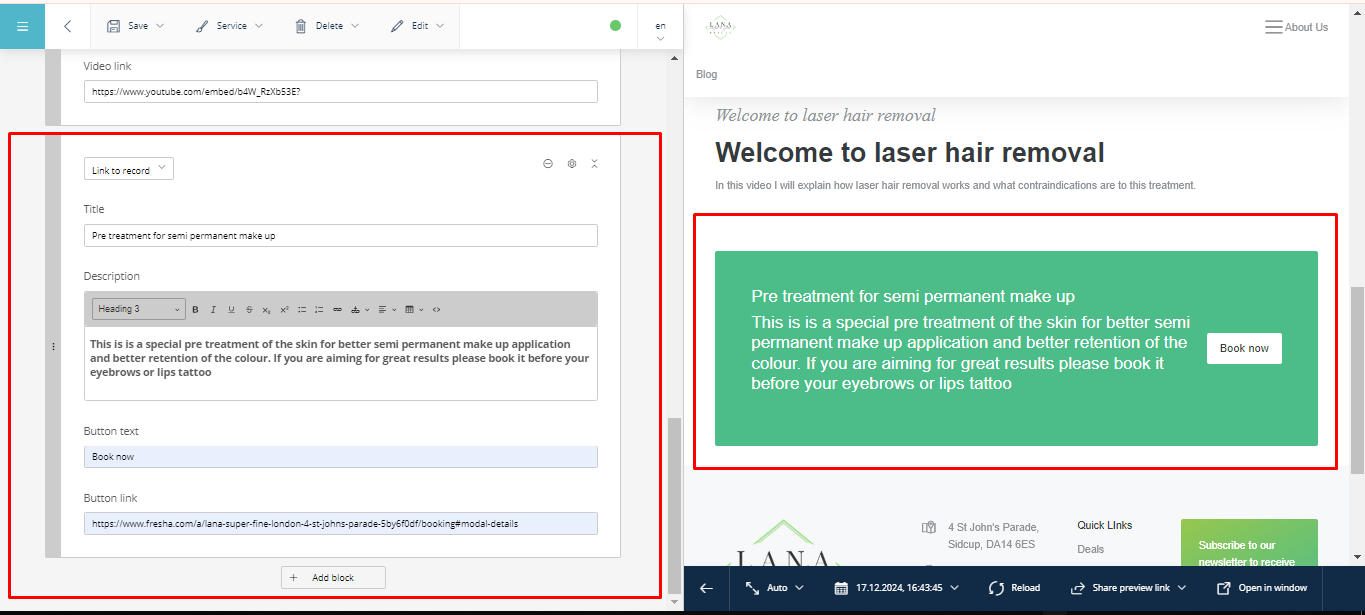
Block: Link to Record#
This block allows you to add additional sub-services or links. Fill in the relevant fields with information about the service.
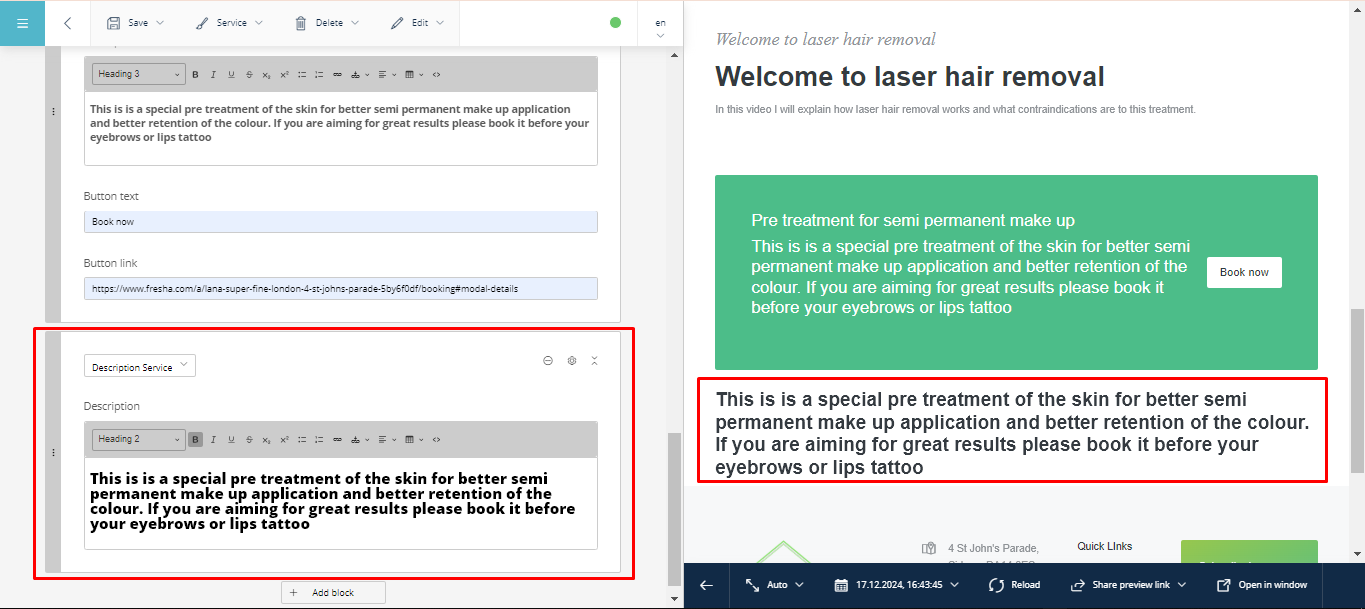
Block: Service Description#
This block is designed for adding and formatting text. You can adjust the font, size, boldness, italics, etc.
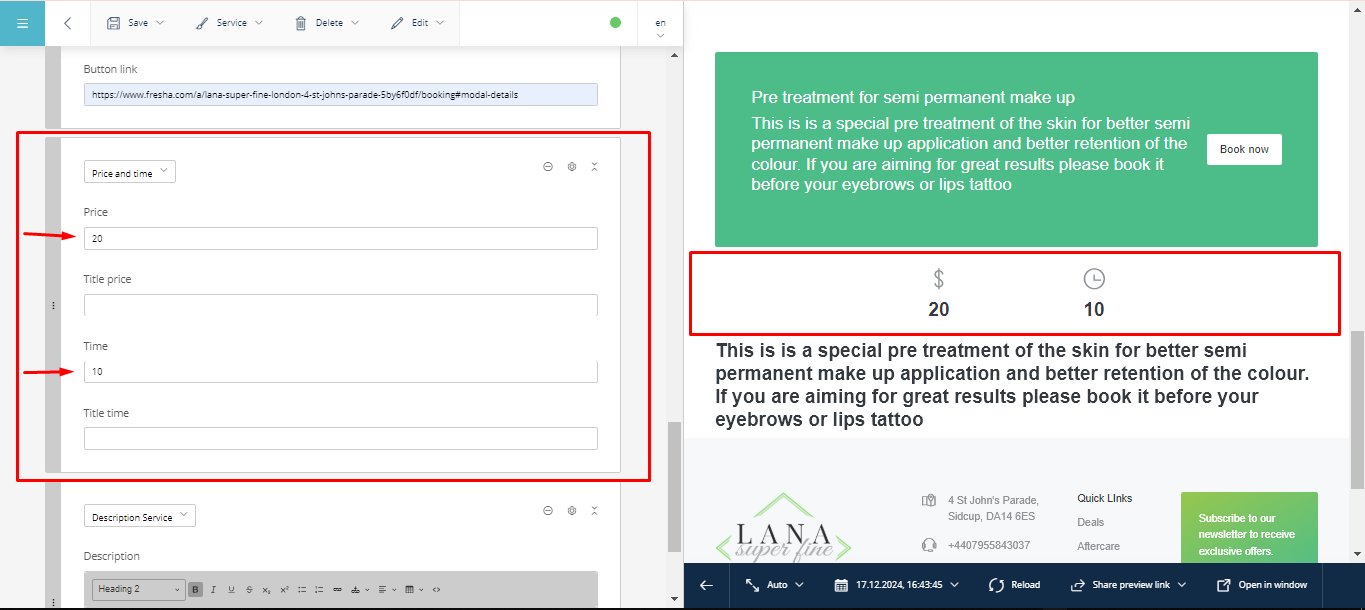
Block: Price and Time#
This widget is used to display the price and duration of the service.
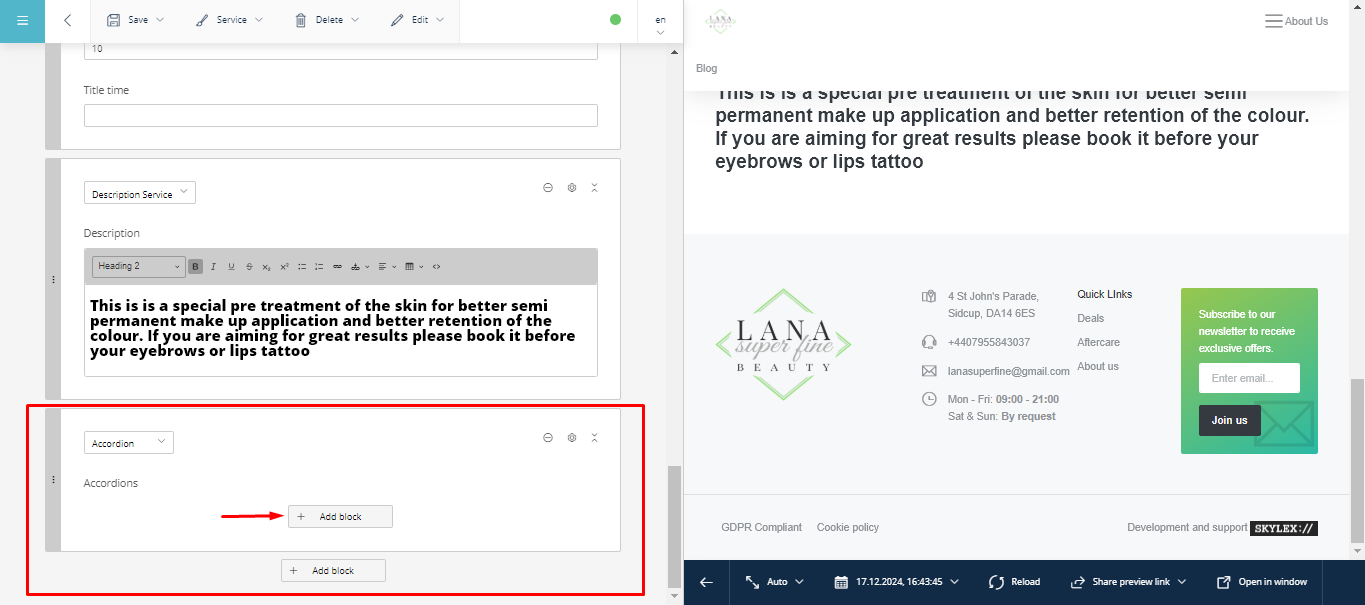
Block: Accordion#
This block is ideal for creating a FAQ section.
Add multiple sub-blocks and fill in the fields with relevant information.
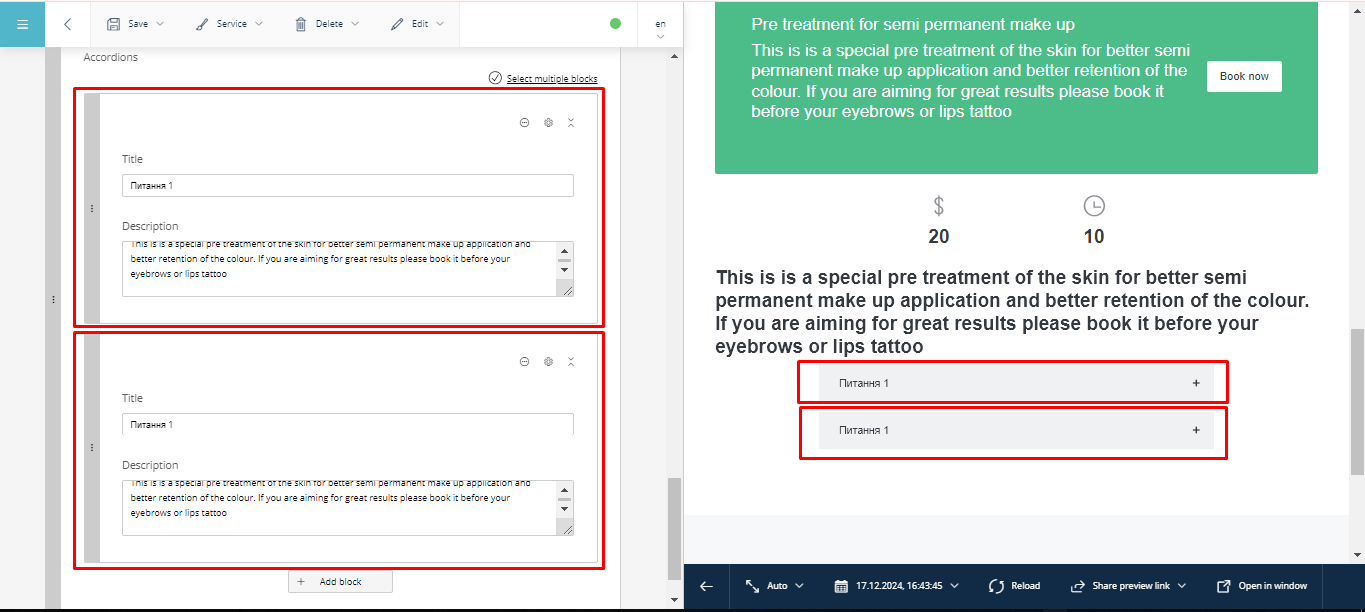
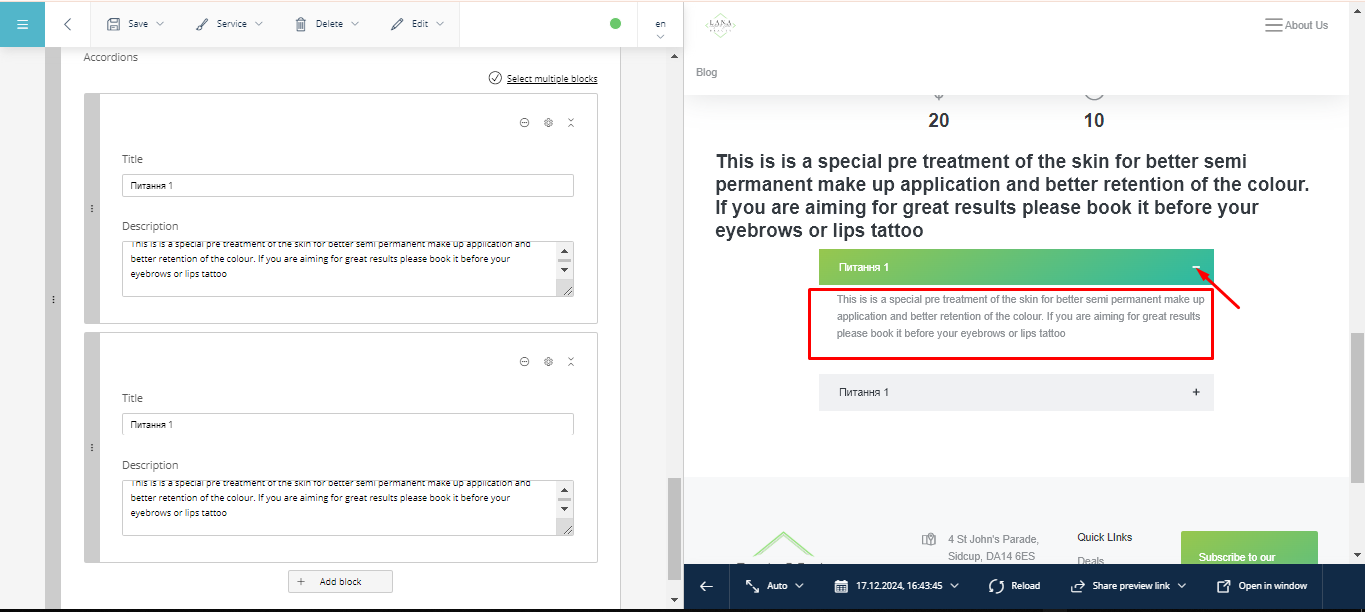
Clicking « + » will reveal the answer.
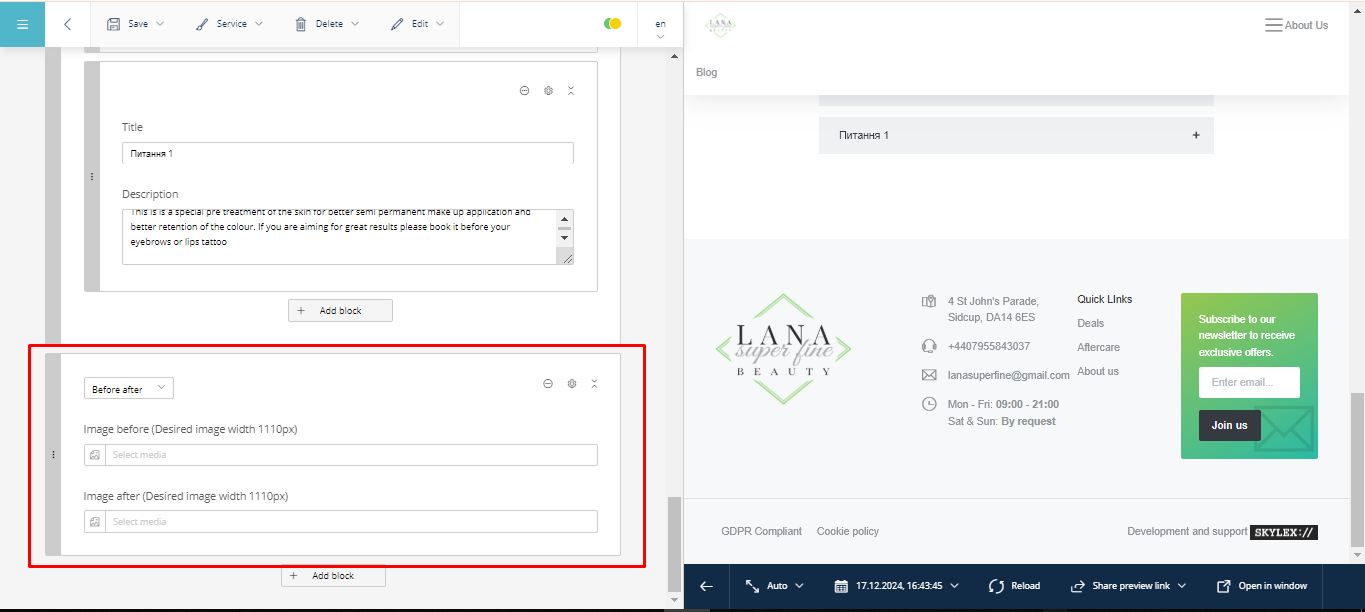
Block: Before and After#
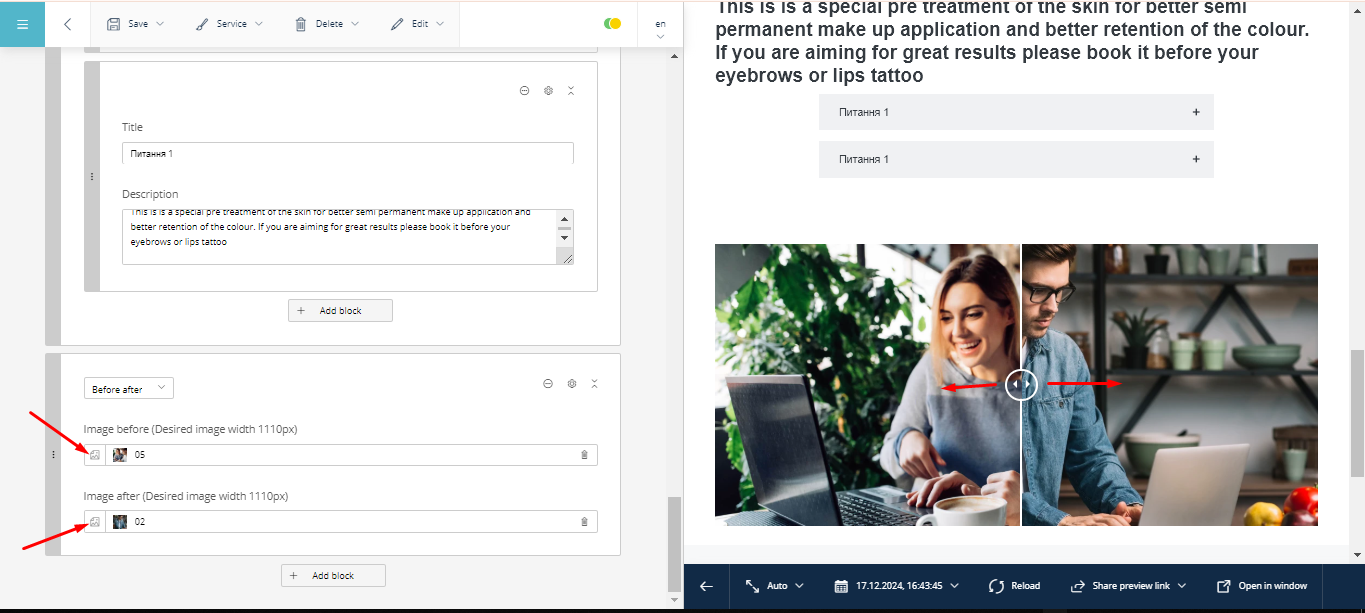
This block is used for displaying comparison photos (« Before » and « After »).
Upload images to the respective slots.
Drag the slider left to right to see the comparison.
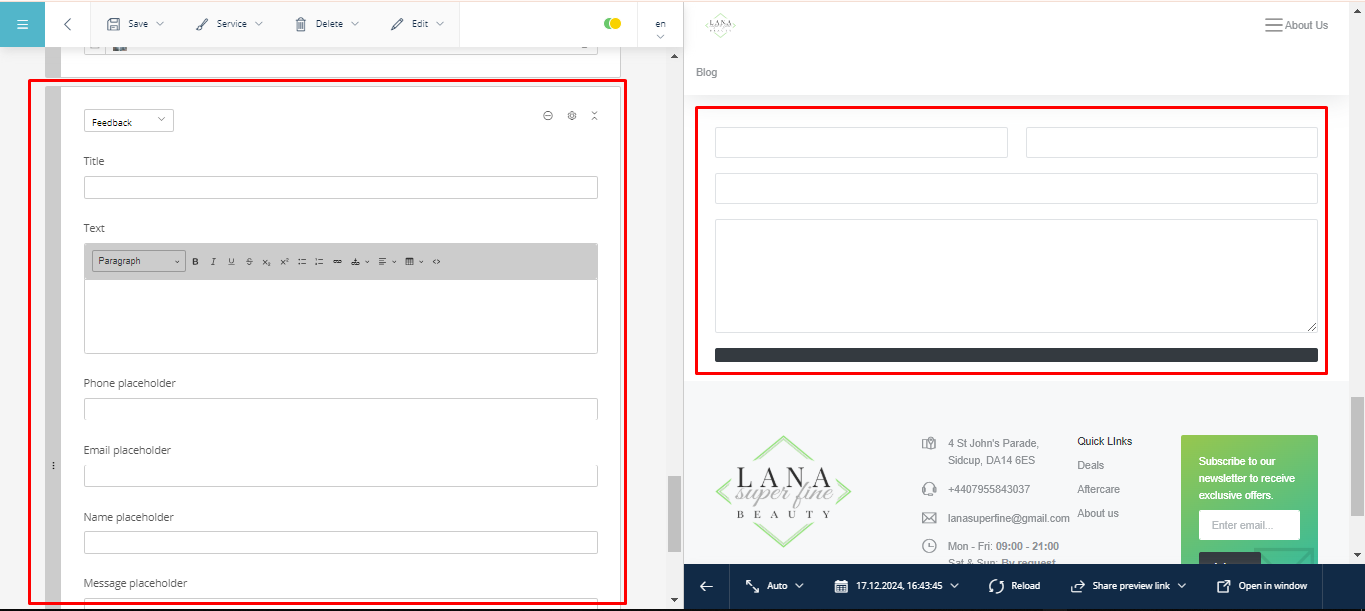
Block: Feedback#
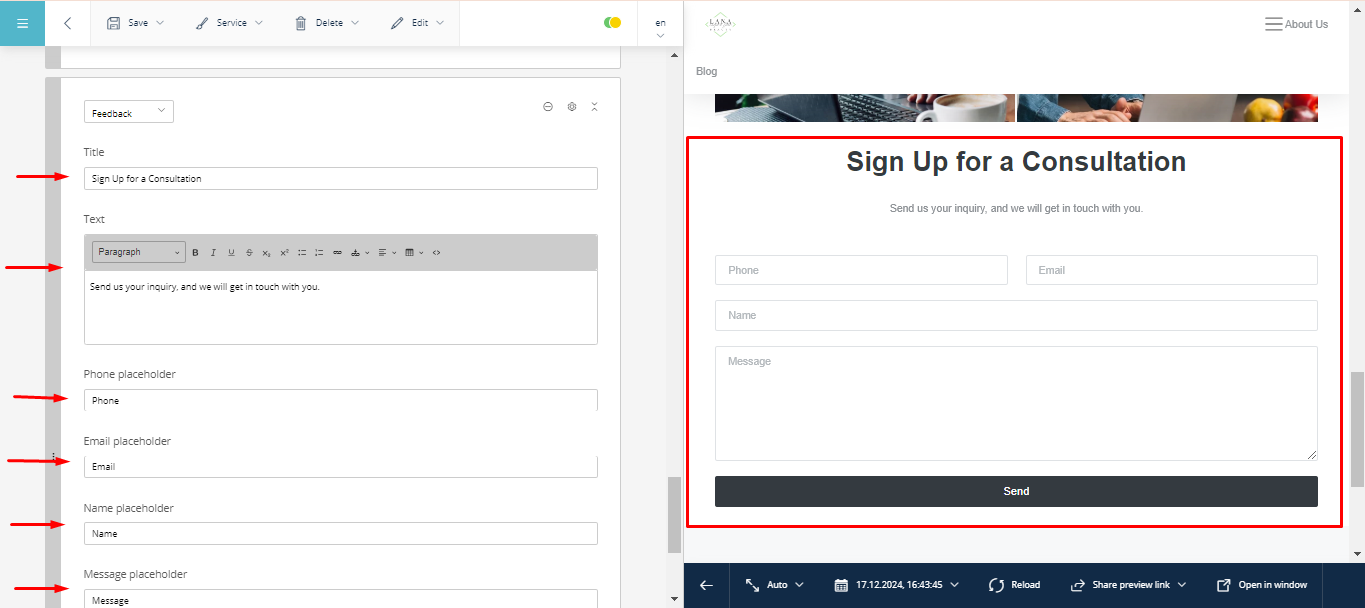
This block is used for creating a contact form.
Fill in all the required fields for the form.
The form is ready for use.
Page Configuration#
Using the blocks listed above, you can configure service pages in various ways to suit your needs.