Home Page#
Log in to the admin panel via the following link:
https://lanasuperfine.co.uk/admin/
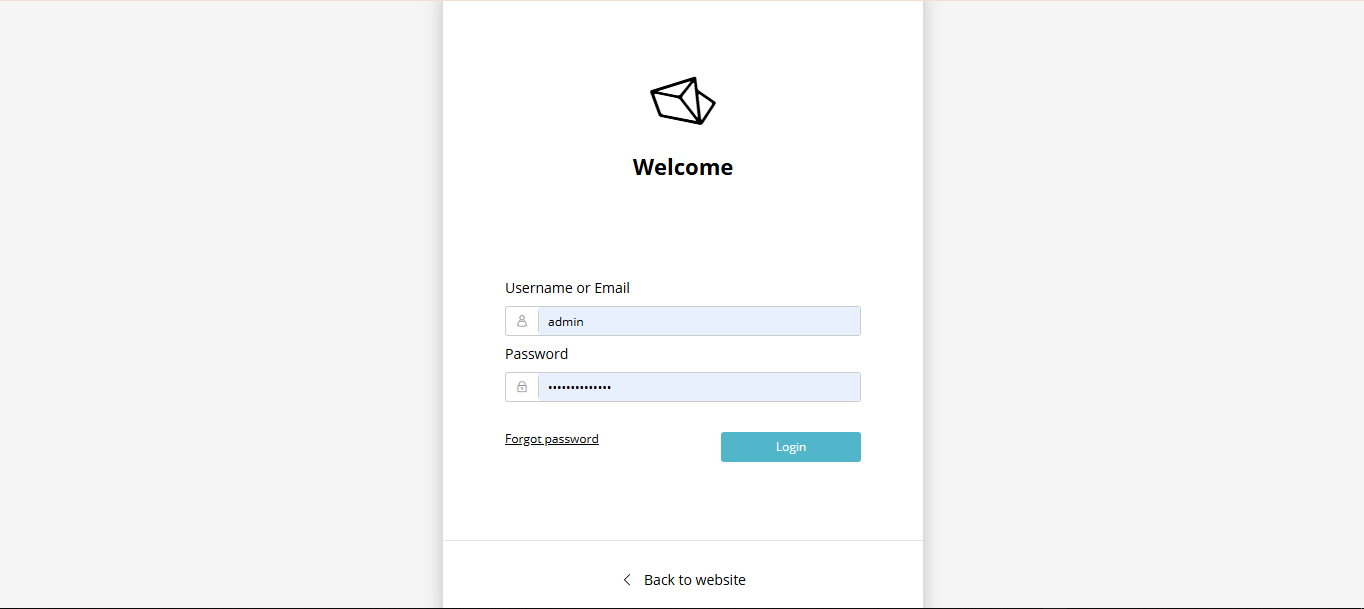
To authorize in the admin panel, enter your login and password.
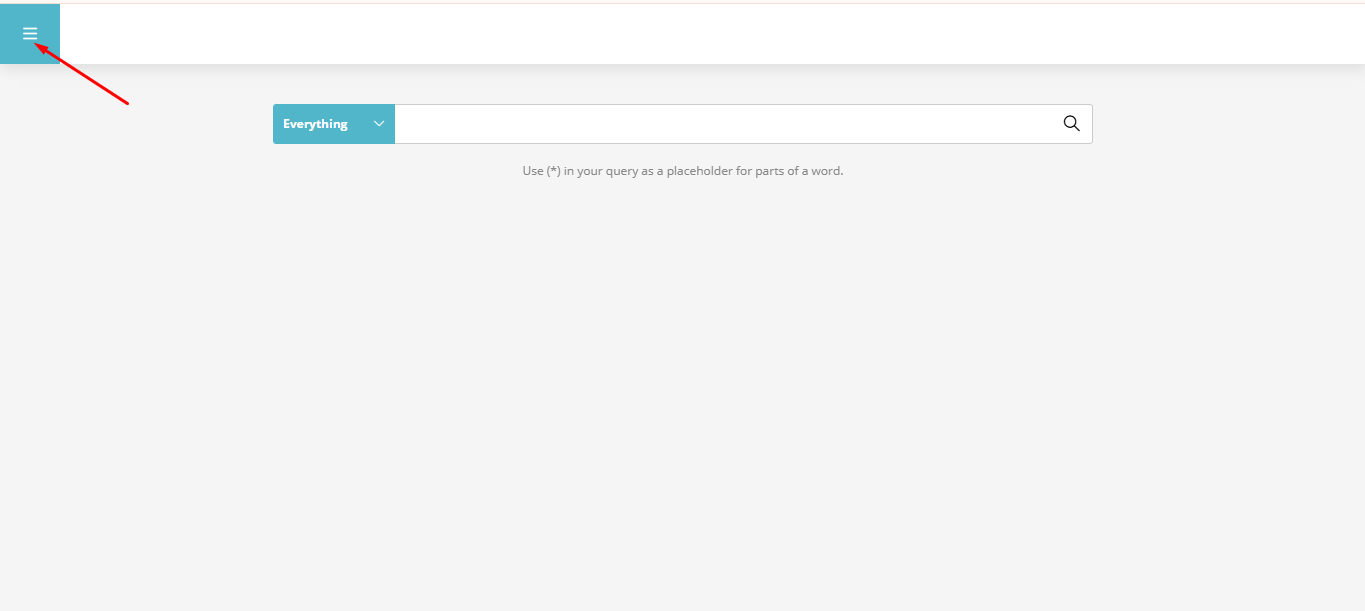
To edit content and view pages, click the corresponding button in the top left corner.
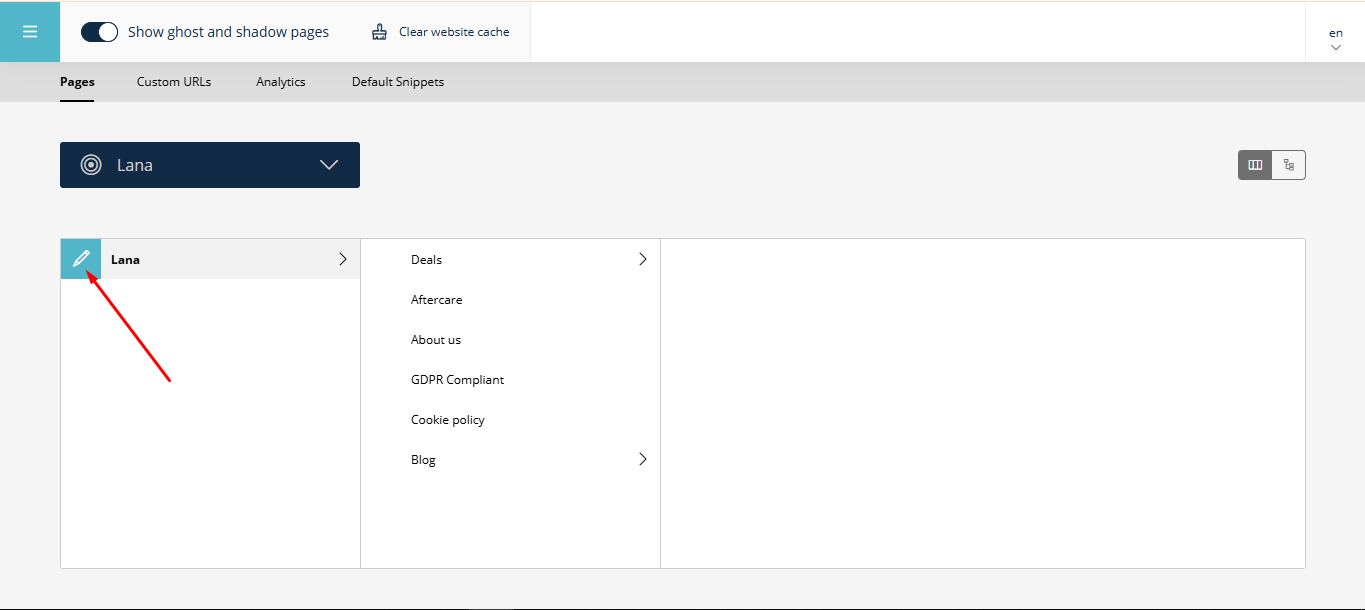
To navigate to the main admin panel, click the corresponding button.
In the next window, the admin panel for the page is on the left, and the actual page is on the right,
where all changes can be seen in real time (draft mode).
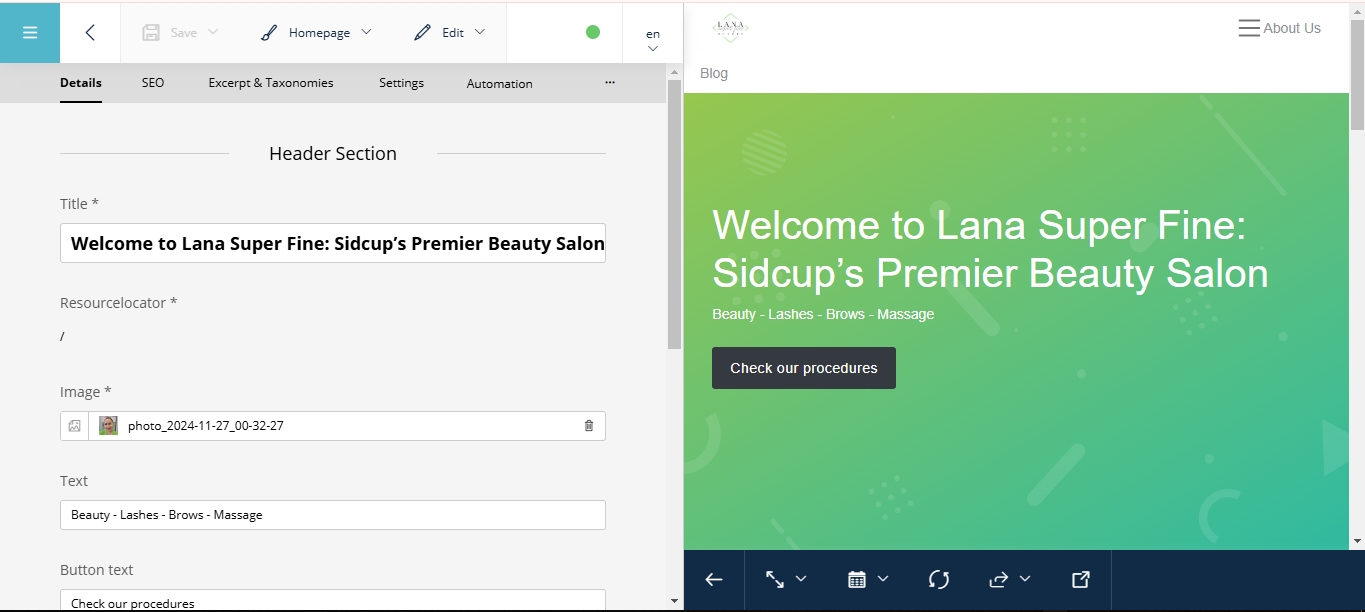
On the right side, where the changes are displayed, there is a panel with buttons at the bottom.
The first button enables you to preview the page on different devices to see how the changes adapt (smartphone, PC, tablet, Auto).
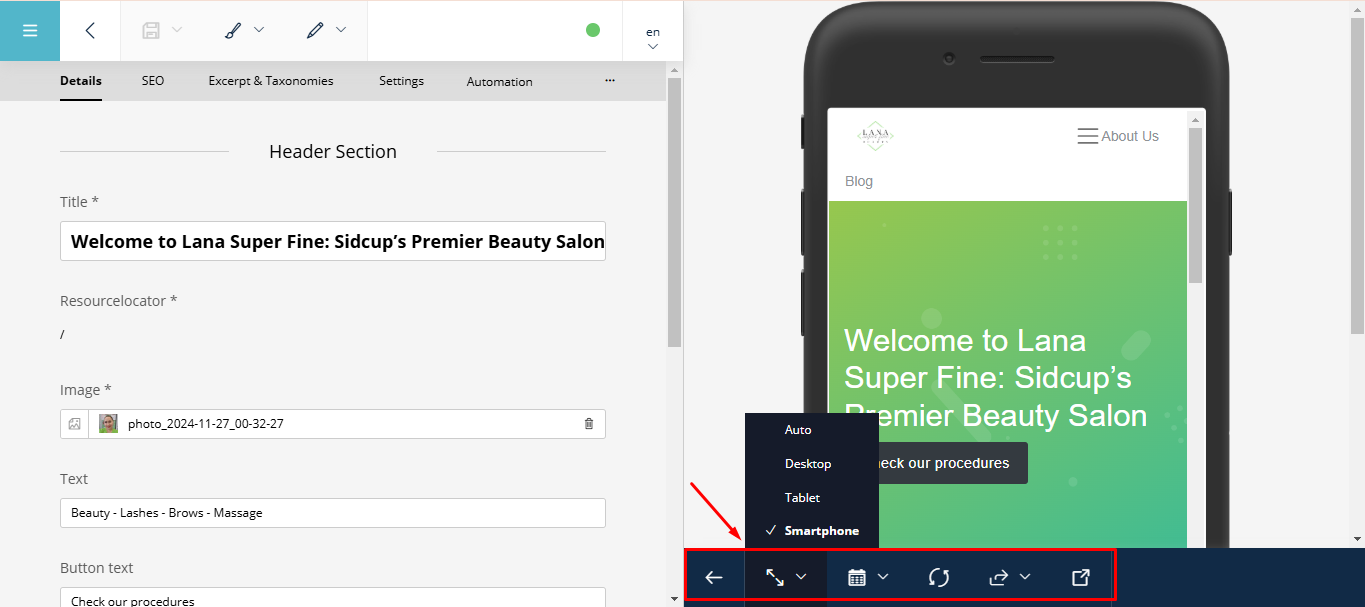
Next buttons:
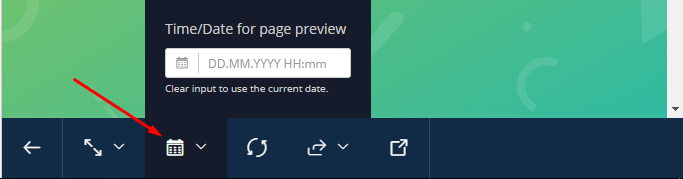
Select the date for publishing changes
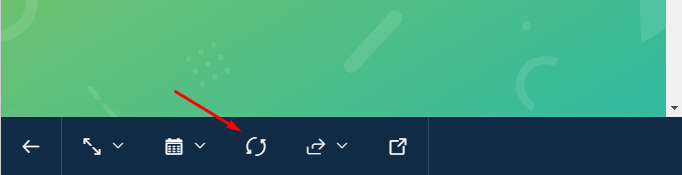
Refresh the page
Generate a link to the page with changes before publishing

The page will open in a new window.

Admin Panel#
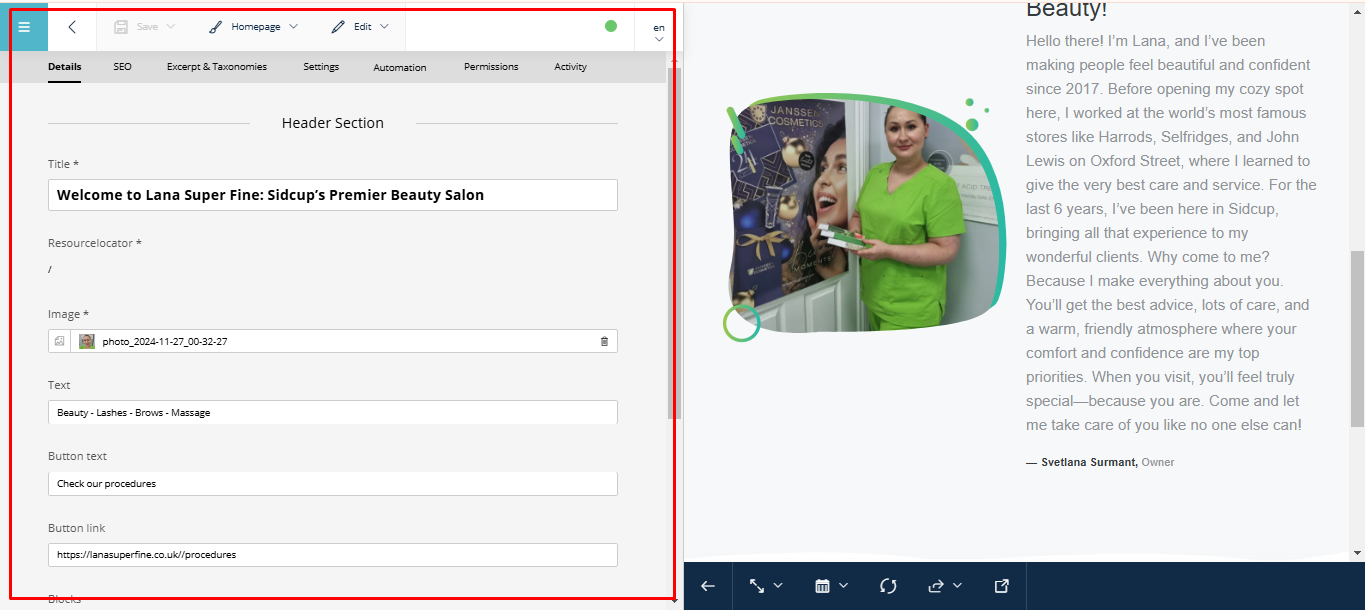
« Details » Tab#
In this tab, you can edit all content on the page (title, text, media, links, buttons, captions, etc.).
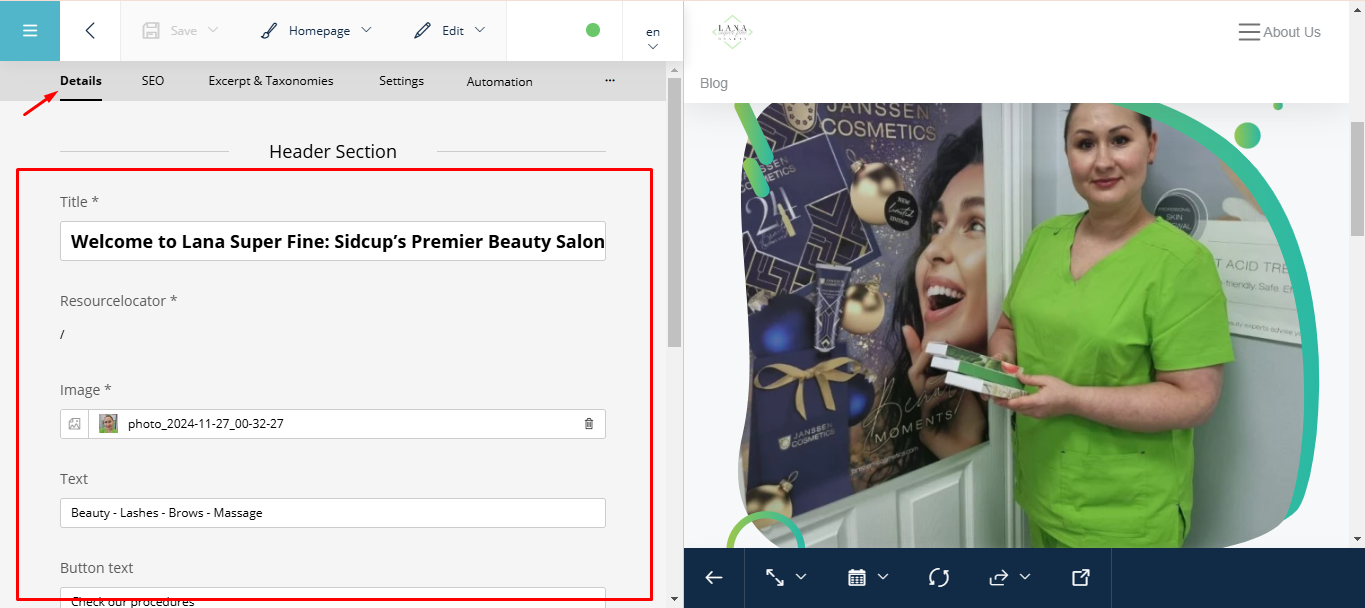
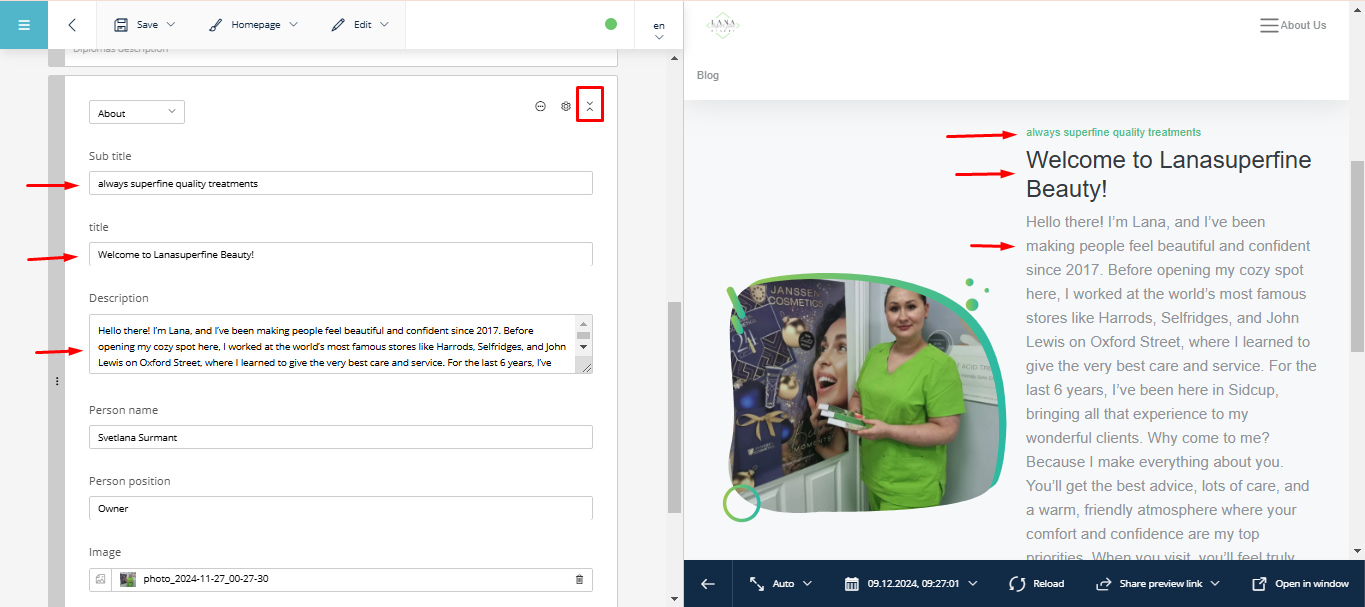
Blocks — they can be of various formats depending on the type of content you want to create (text, media, photo slider, video, tables, etc.).
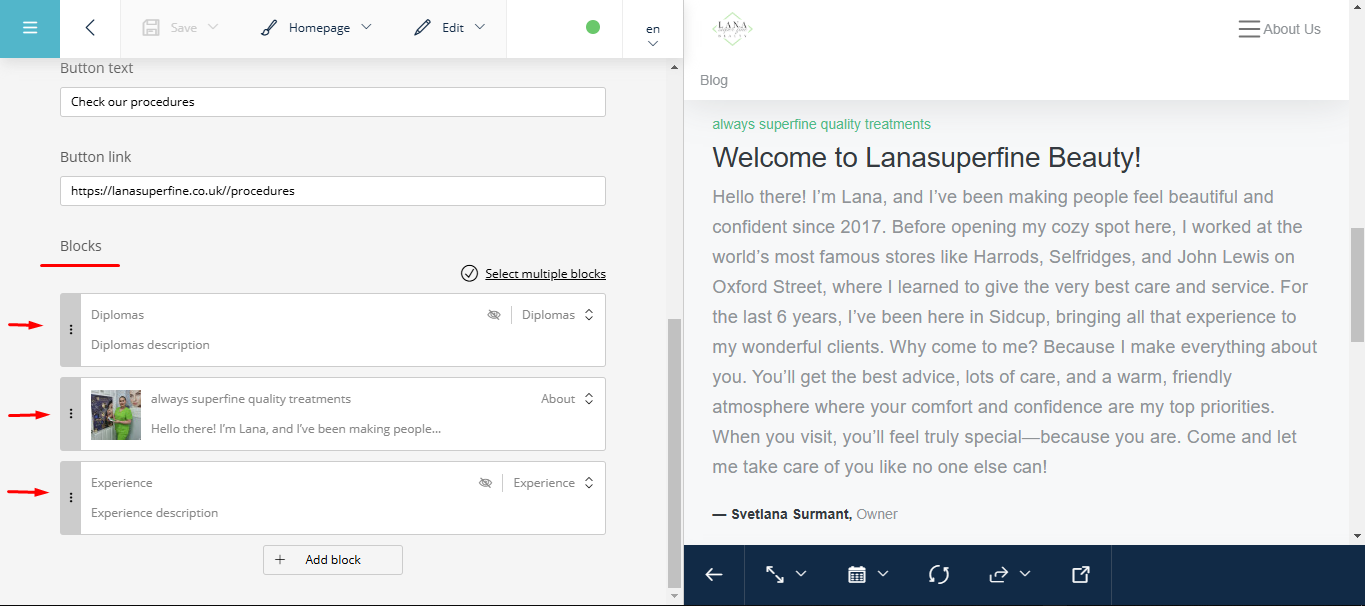
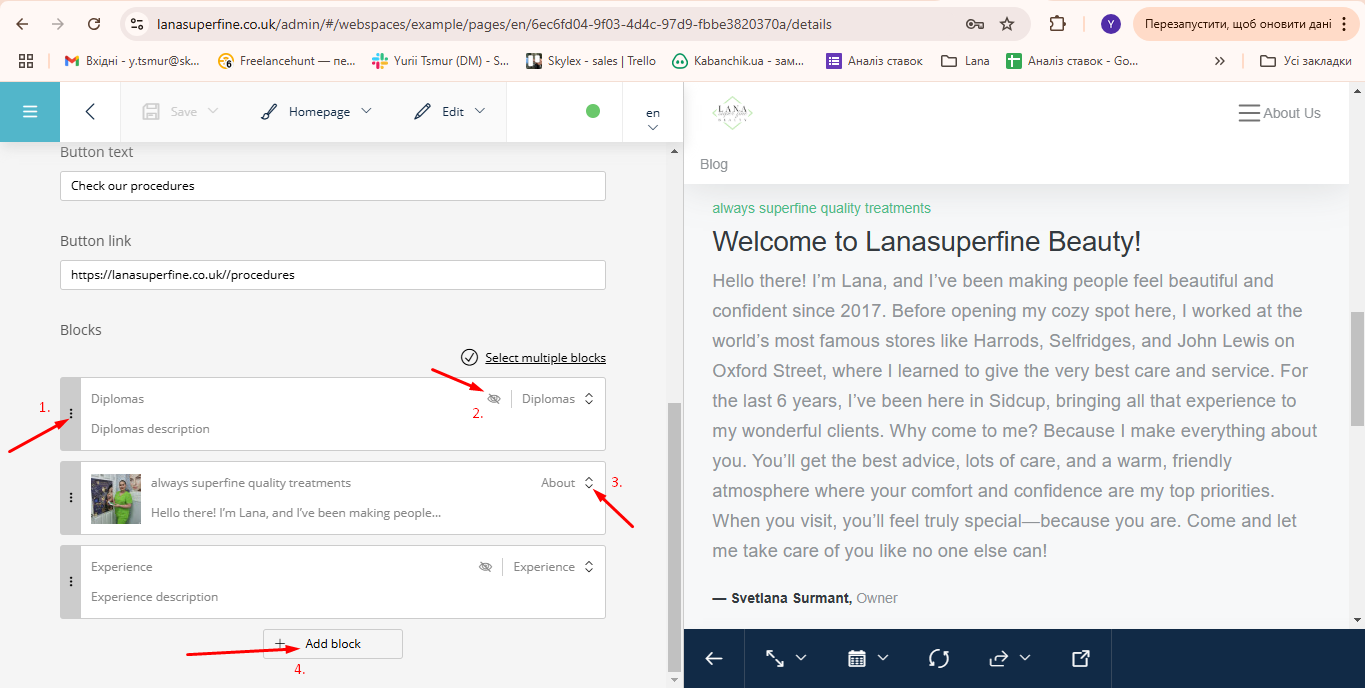
Block Indicators:
The « three dots » icon — allows you to move the block to any part of the page.
Icon 2 — indicates that the block is currently hidden and is not displayed on the site.
Icon 3 — clicking it opens the block for editing content.
« Add block » button — allows you to add a new block to the page.
Once the block is expanded, you can edit all the content within it.
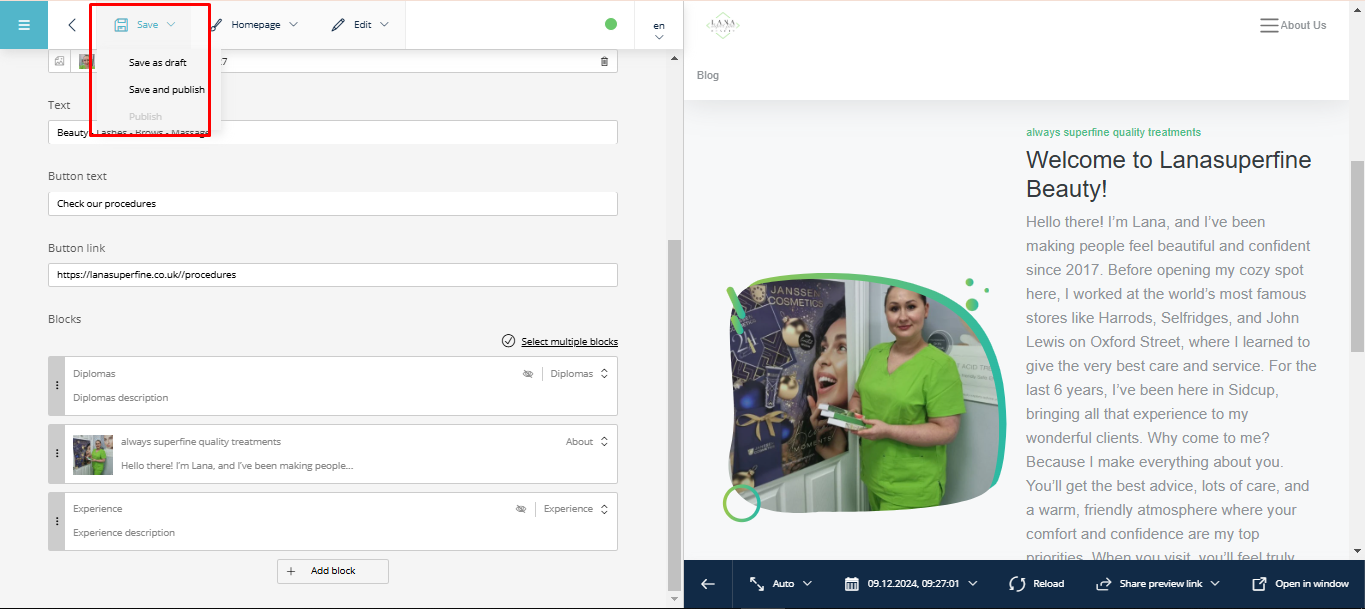
After making changes to the page, save them by clicking on the « Save » icon. You then have the option to:
« Save as draft » — saves changes without publishing (useful if the work is unfinished).
« Save and publish » — saves and publishes changes immediately to the site.
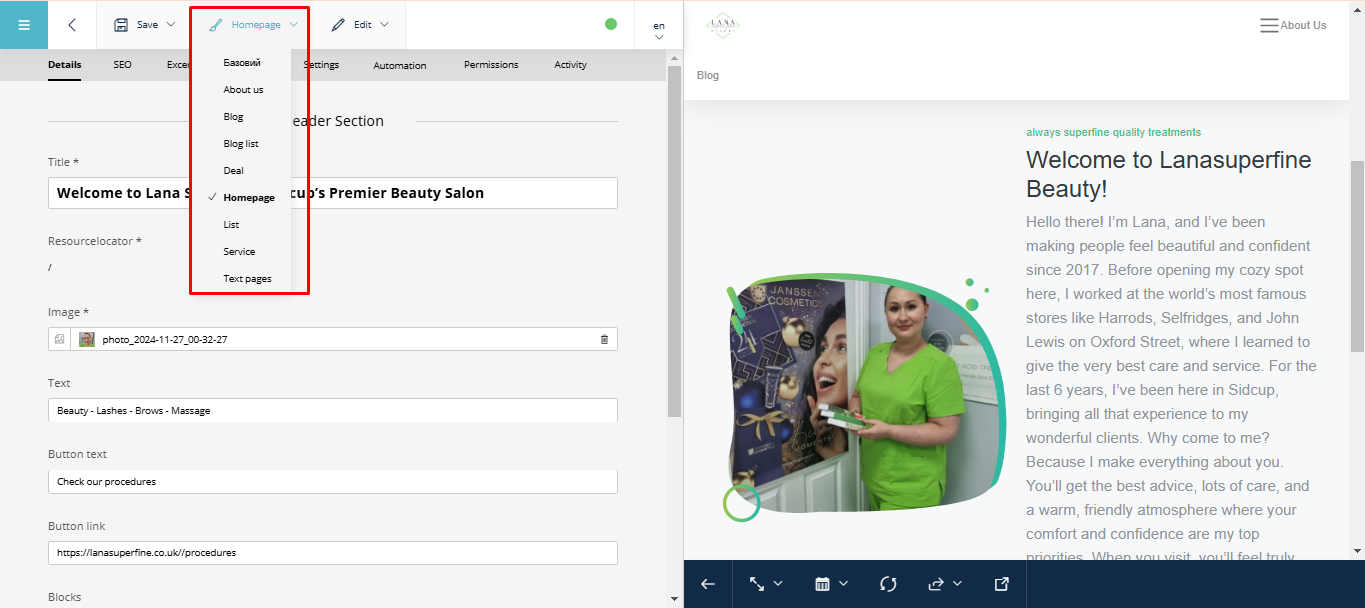
Clicking this icon allows you to quickly navigate to other pages on your site.
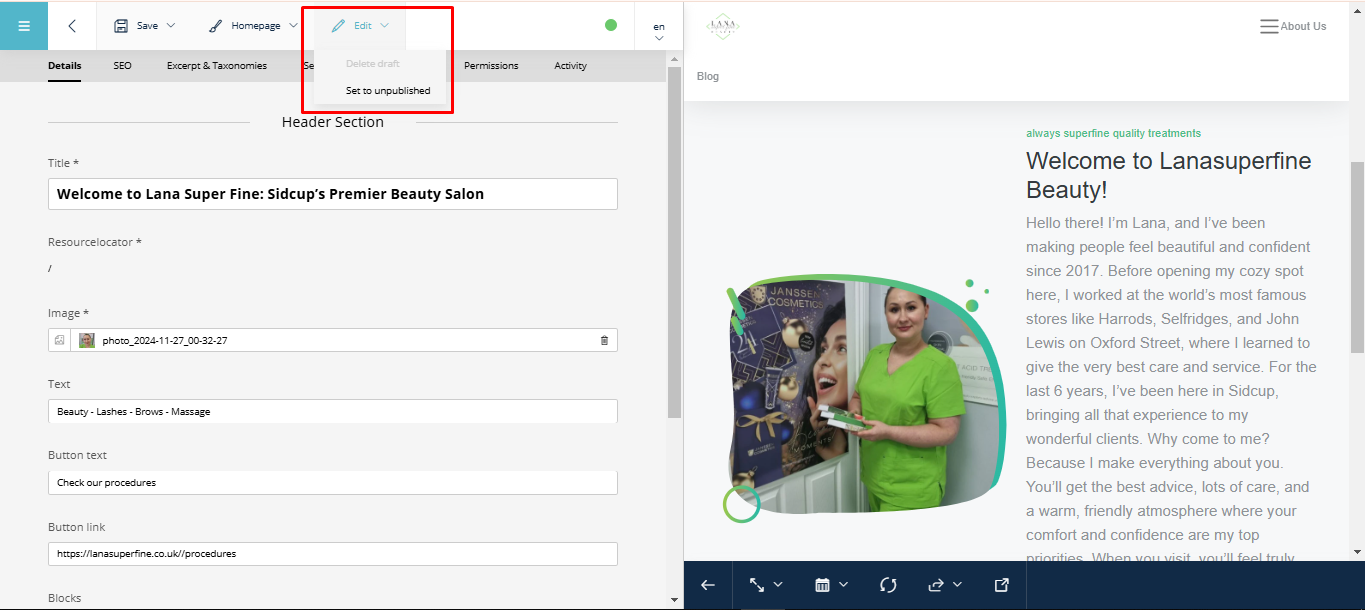
Clicking the « Edit » icon allows you to manage the draft if one already exists.
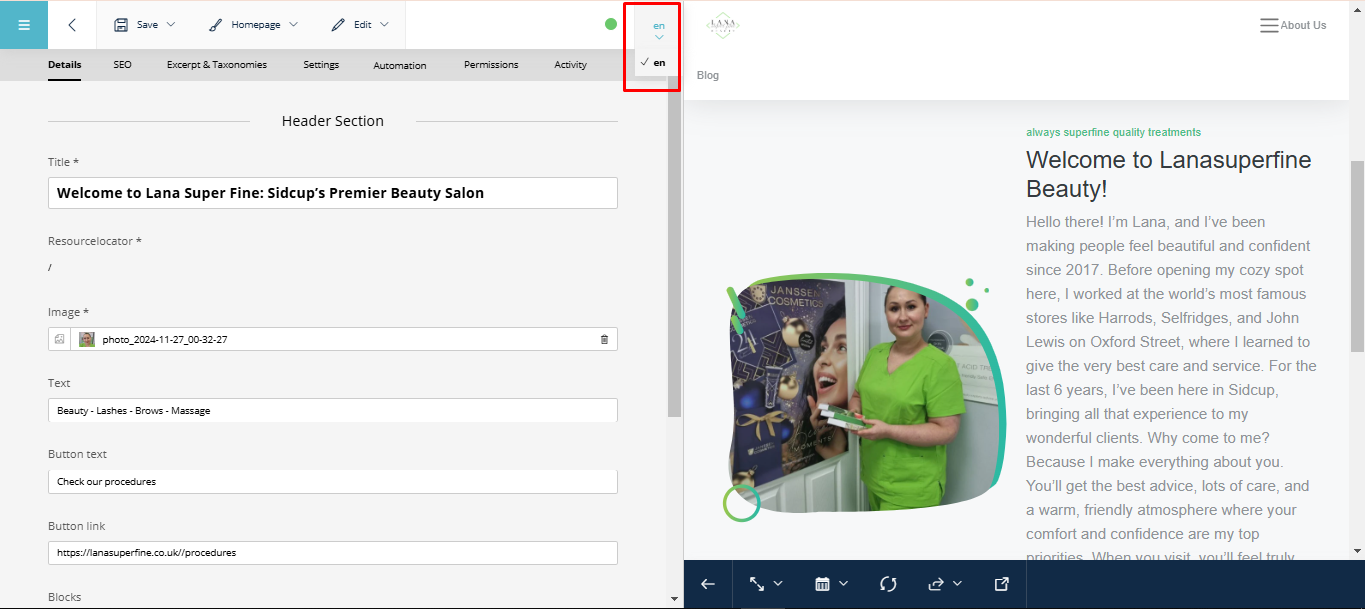
This icon allows you to switch the site’s language if more than one language is available.
« SEO » Tab#
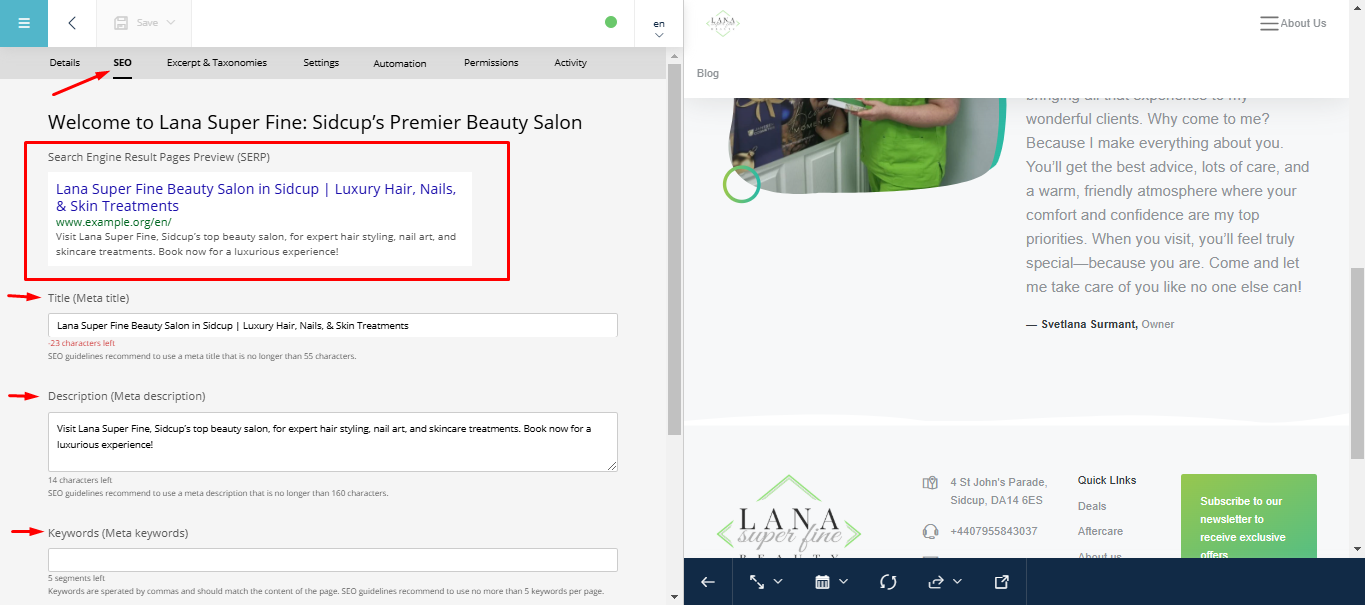
In the SEO tab, you can fill in or edit all SEO data for search engines, such as Title (page title), Description (page description), Keywords (keywords), etc.
A preview of how the page will appear in search engine results (SERP — Search Engine Results Page) is also available.
« Activity » Tab#
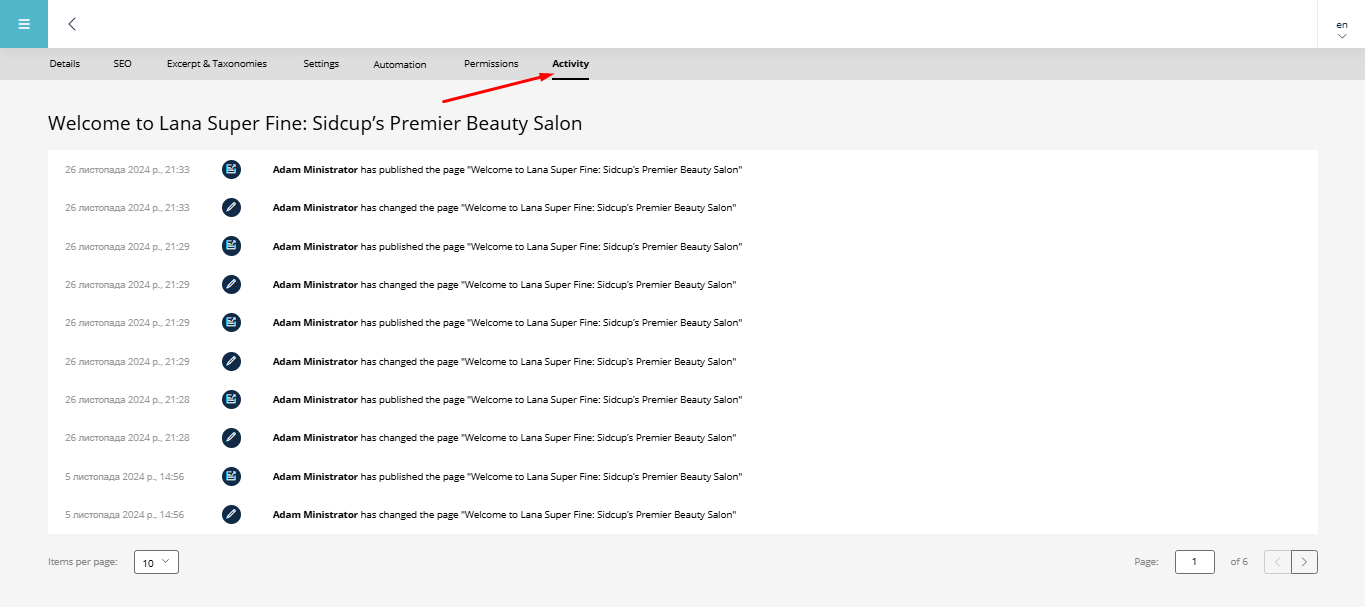
This tab shows all changes made to the site, including when and by whom they were made.
To return to the main admin panel, click the arrow in the top left corner.
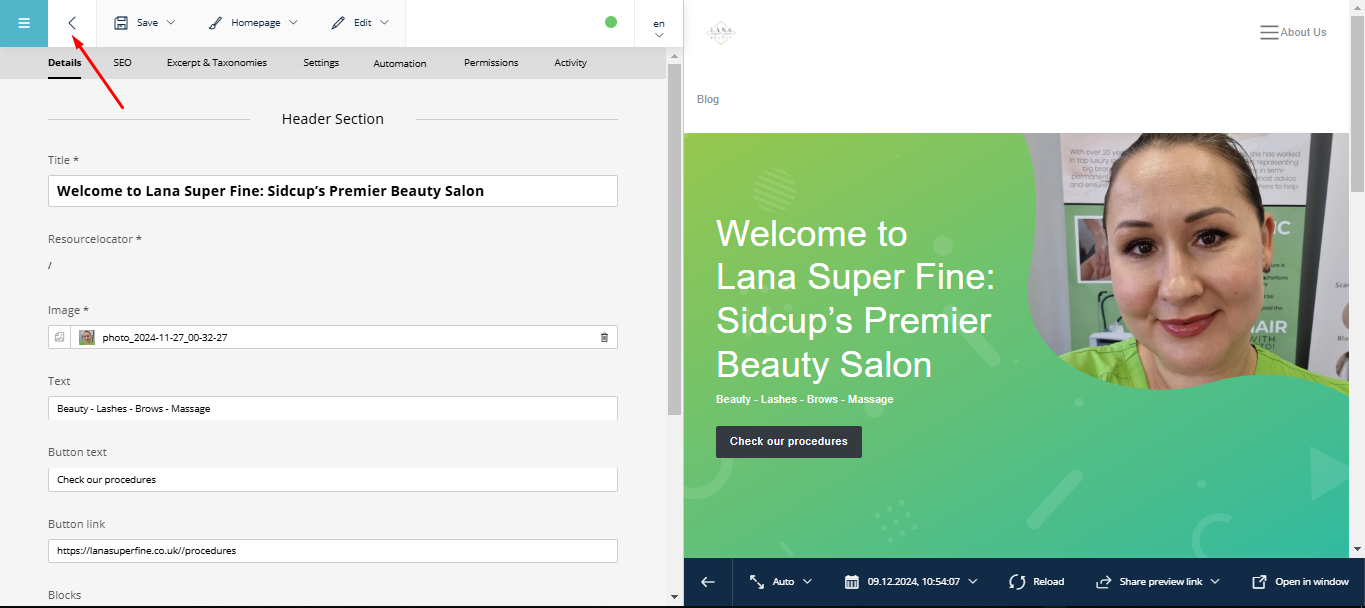
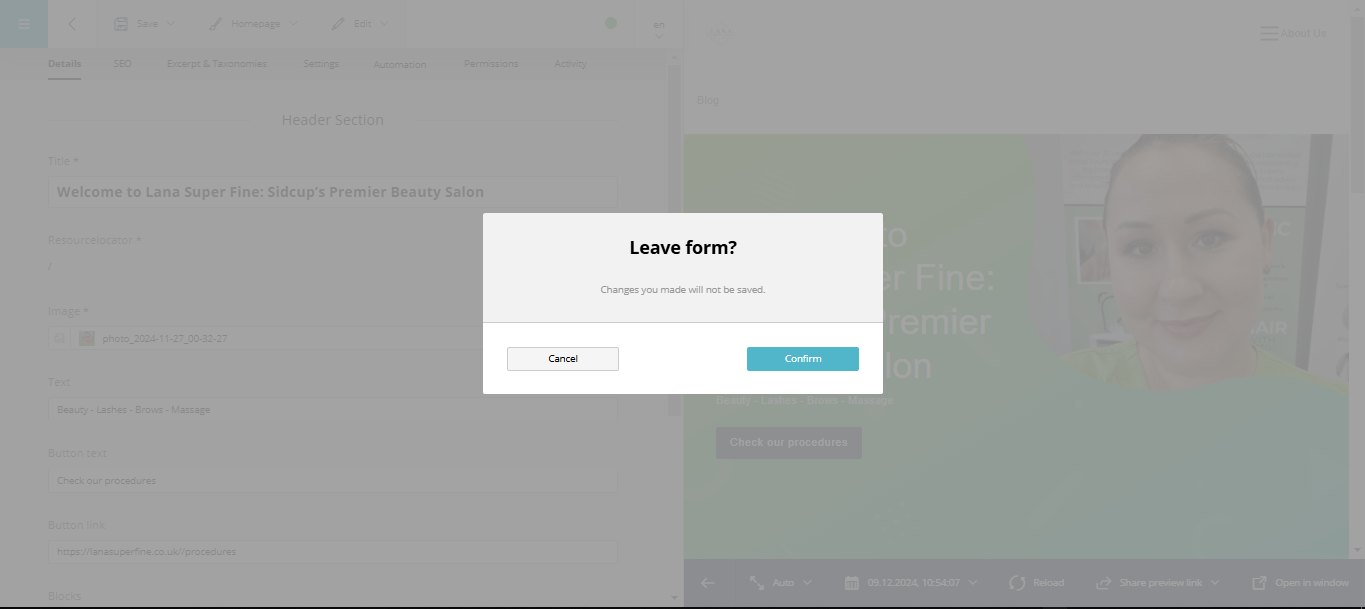
If there are unsaved changes, the system will warn you before exiting.