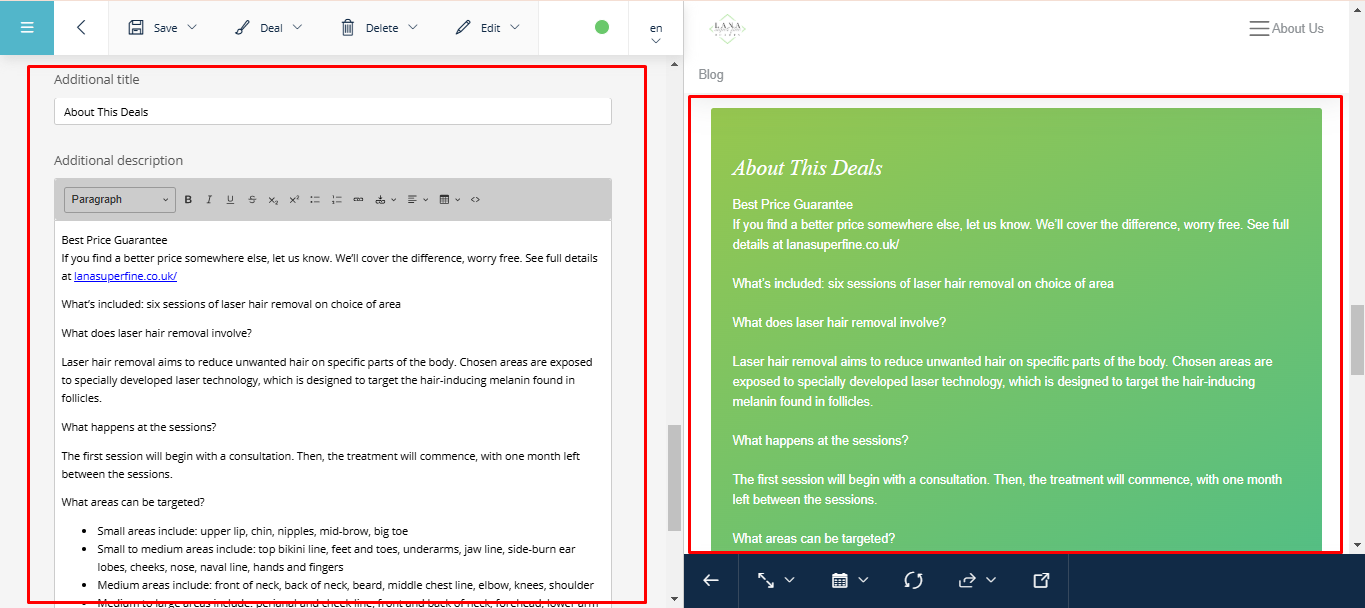
Deels#
To go to the « Special Offers » page, click on the corresponding icon and:
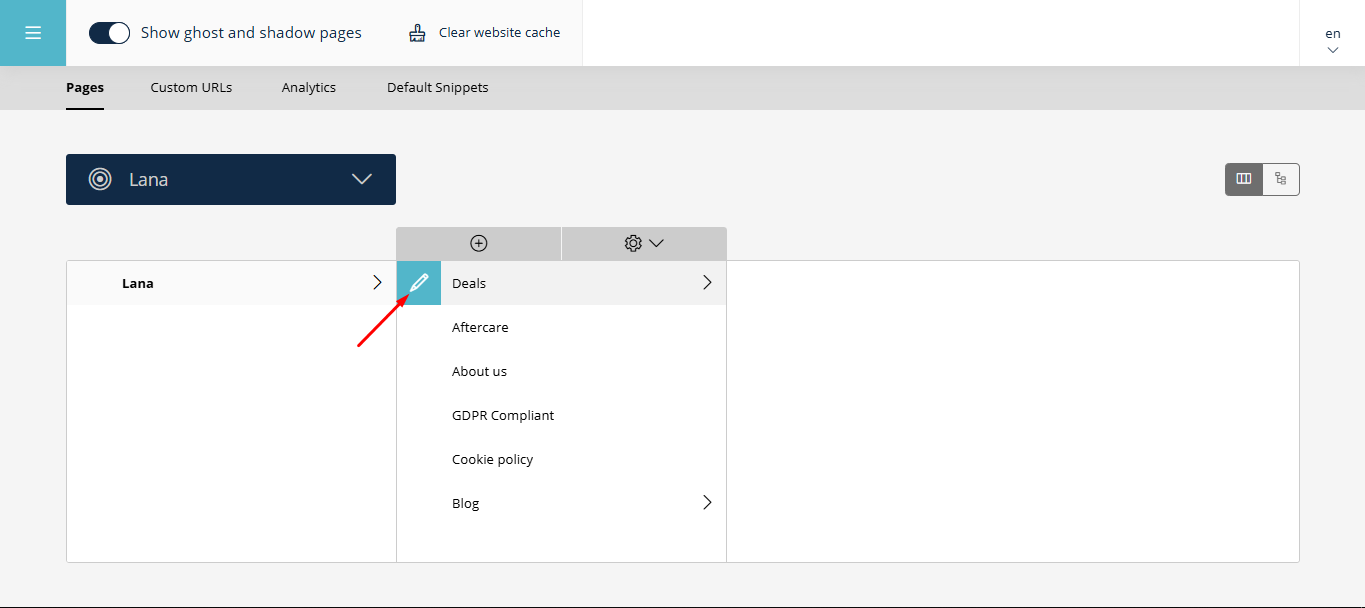
We proceed to edit the page.
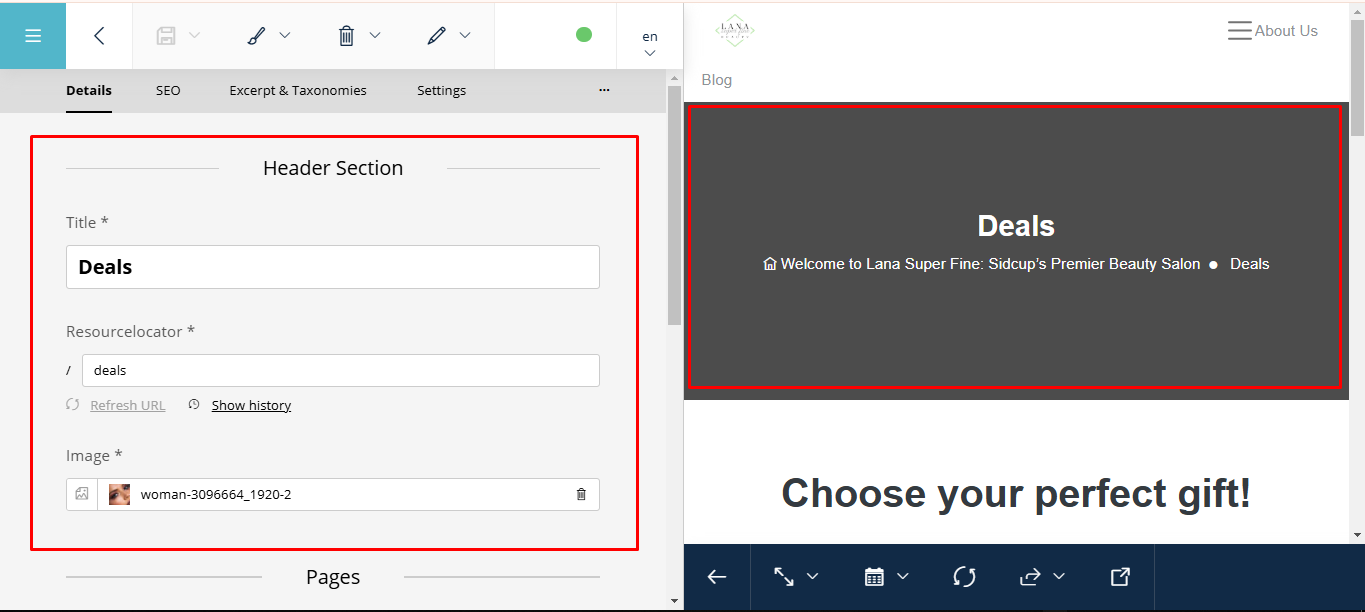
At first, we see the field for editing the header:
Below, we can go to edit other pages:
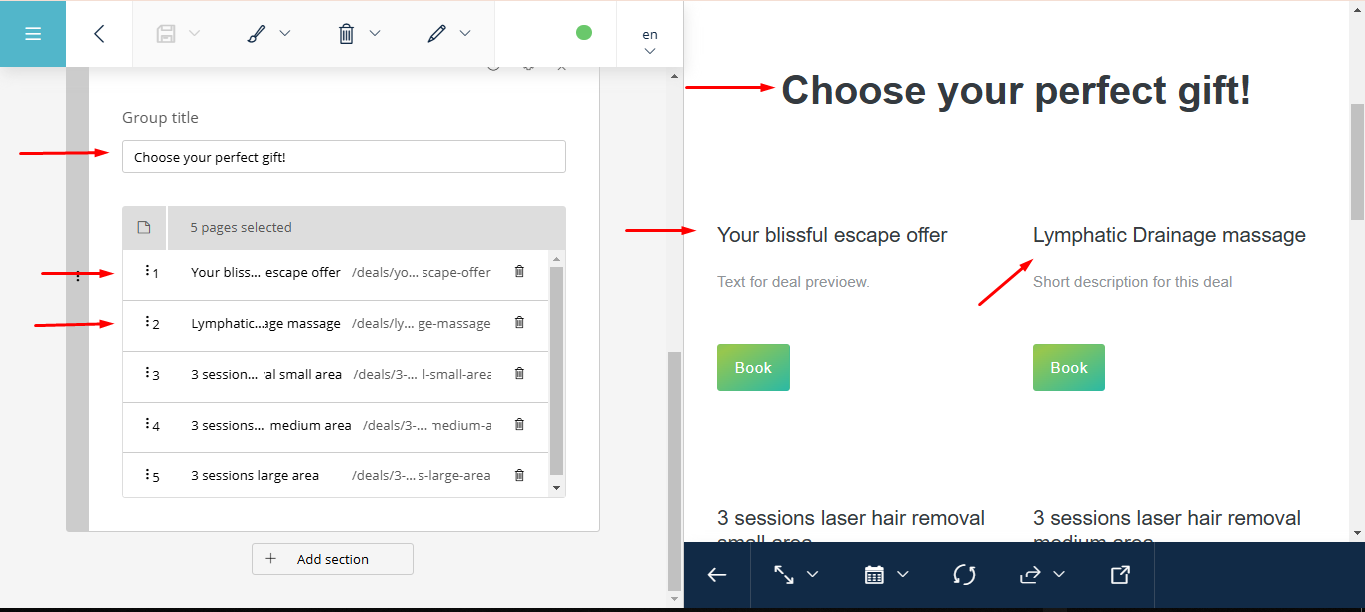
To edit a specific page, for example:
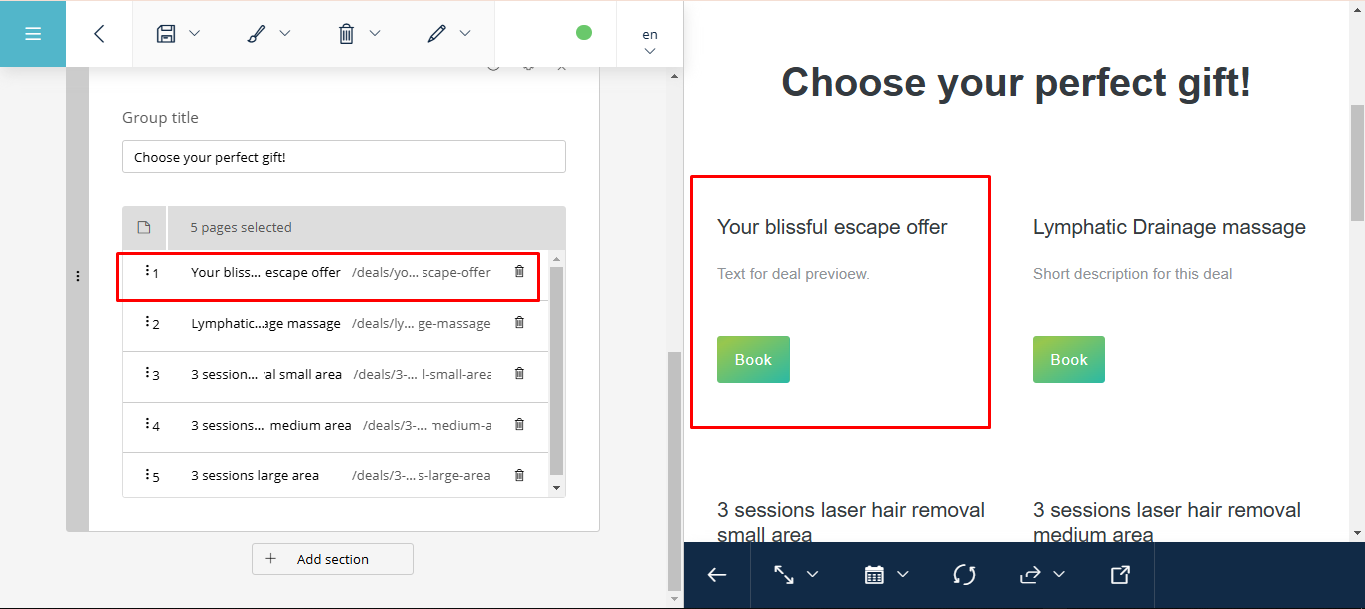
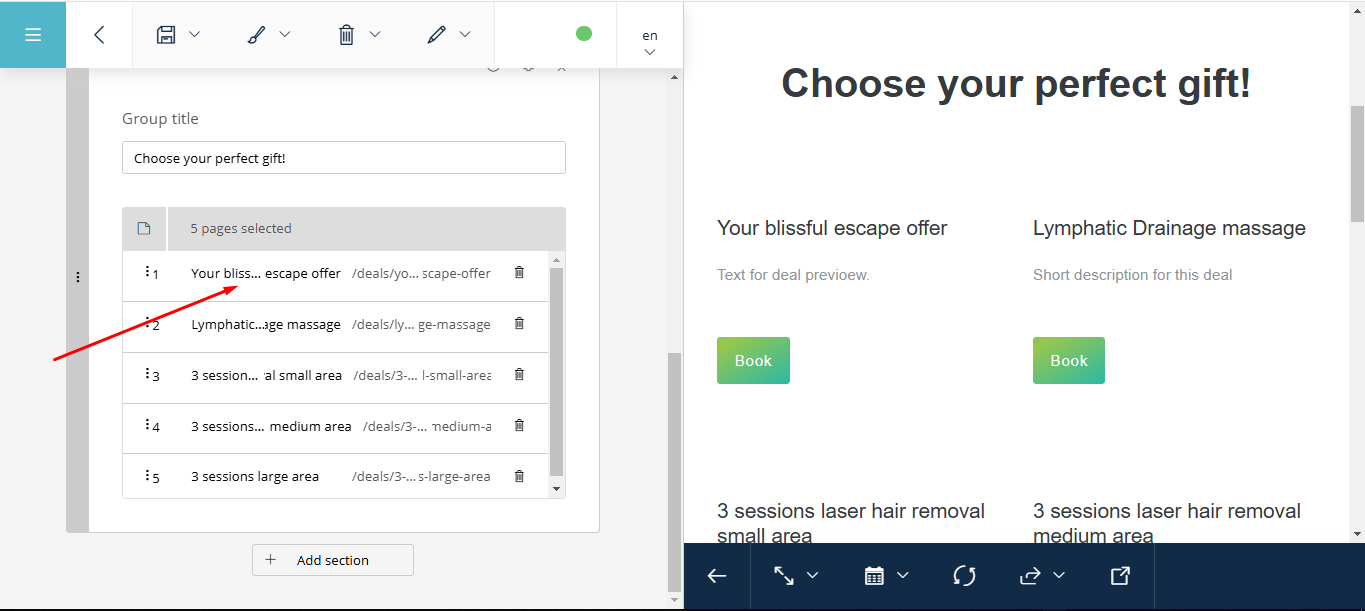
Click on this page:
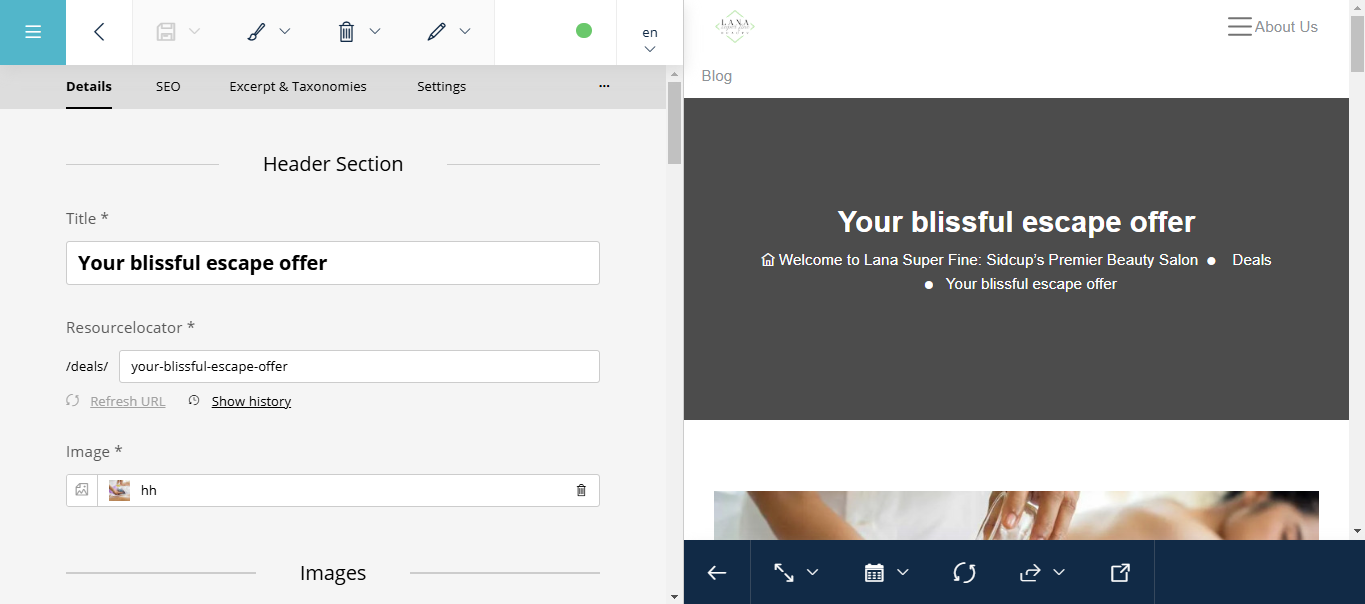
We are redirected to the page of our special offer:
Below, there are blocks of photos that we can edit and change the content:
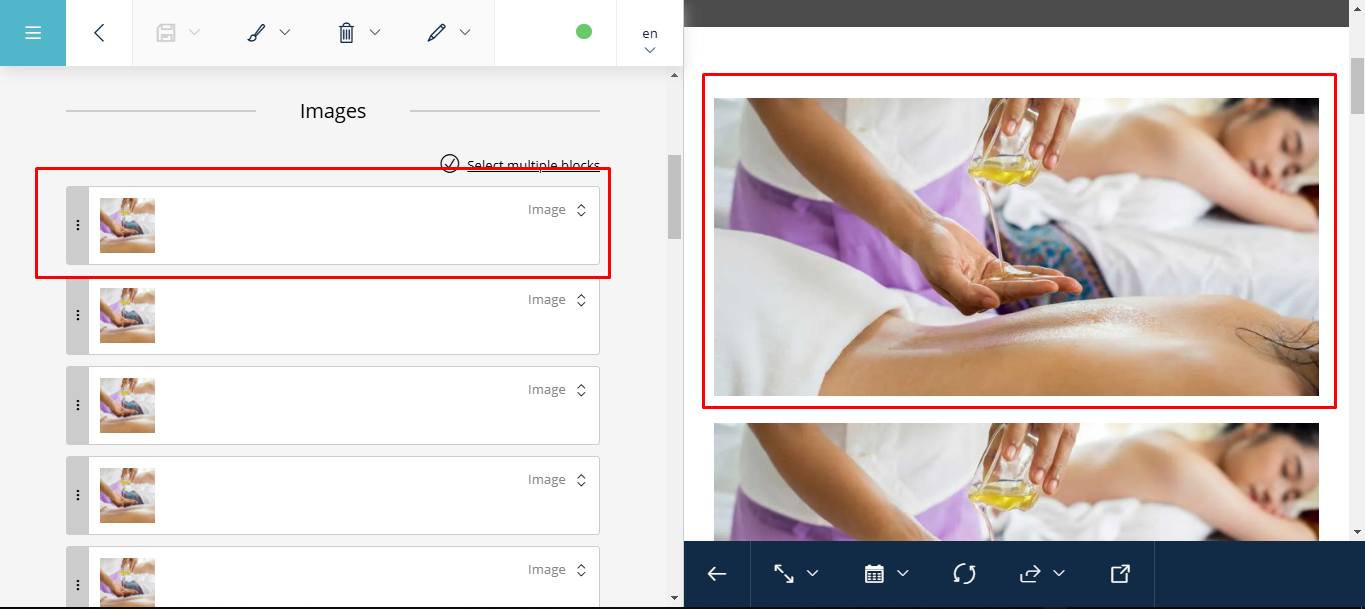
To edit a block, we expand it by clicking on the corresponding button:
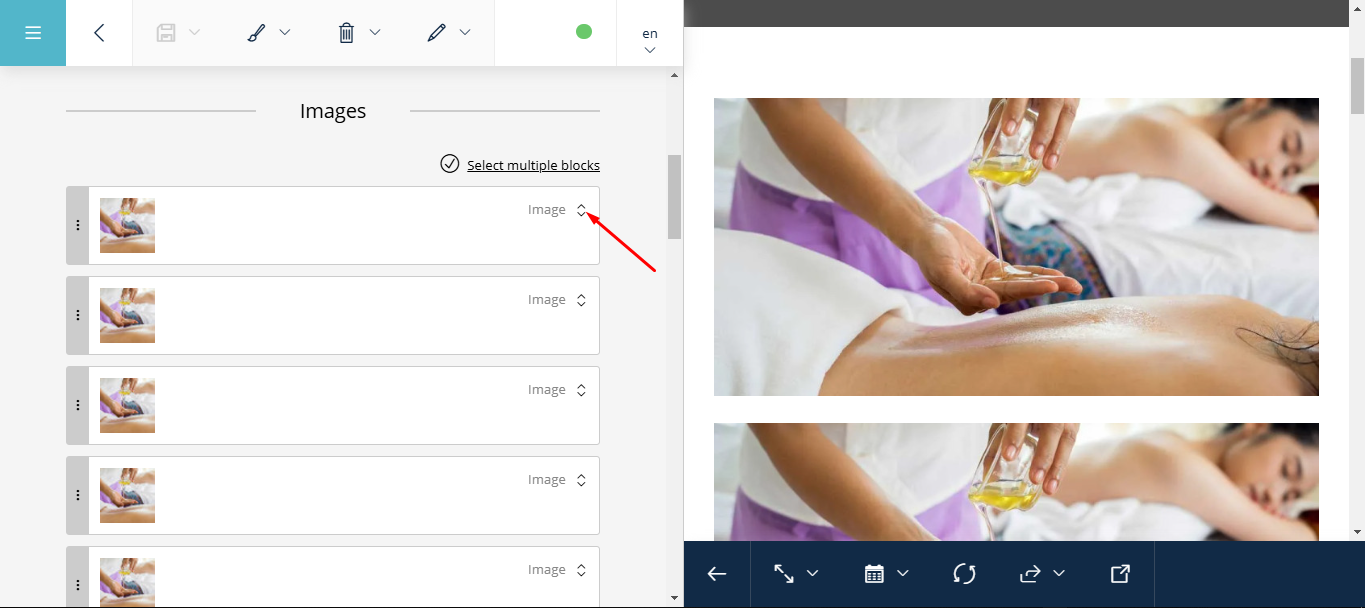
Then click on the button to upload a new image:
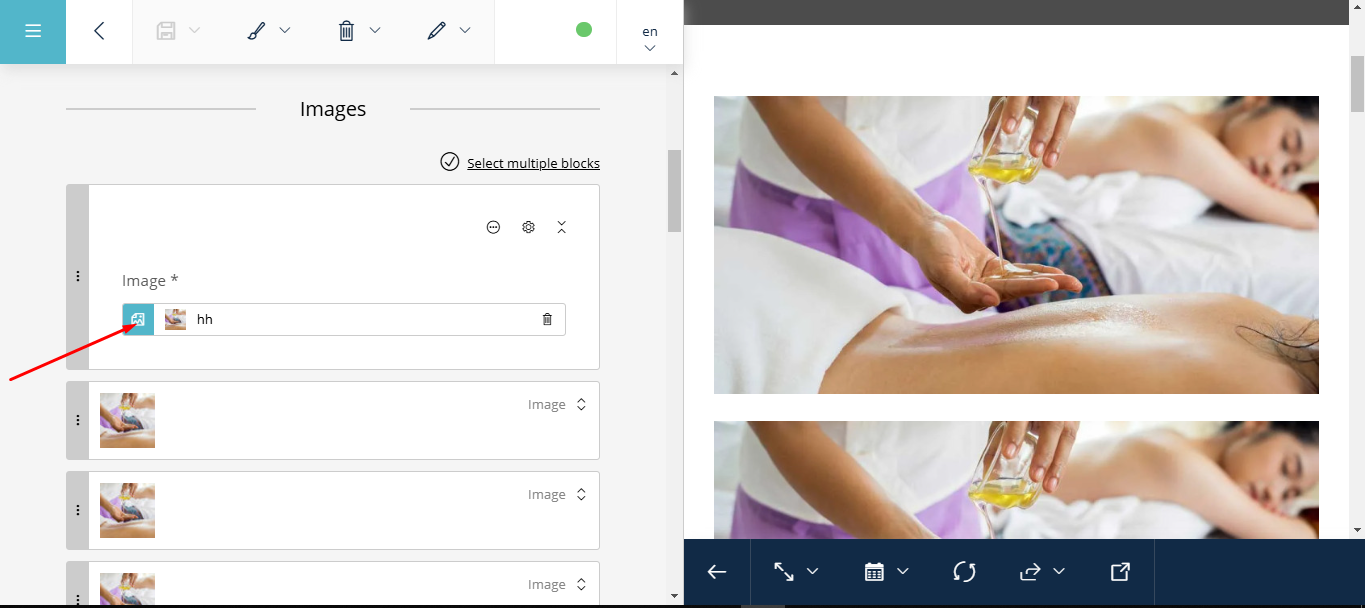
Choose the folder where the required image is located:
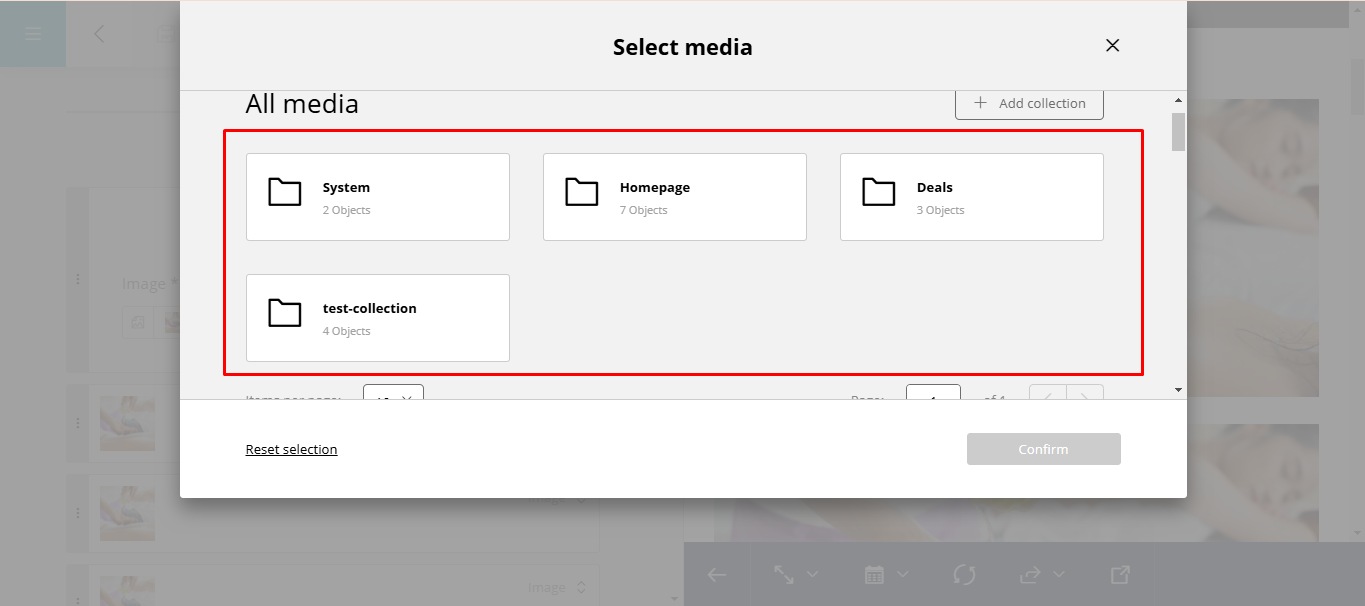
Or scroll down, where there will be a general list of all images:
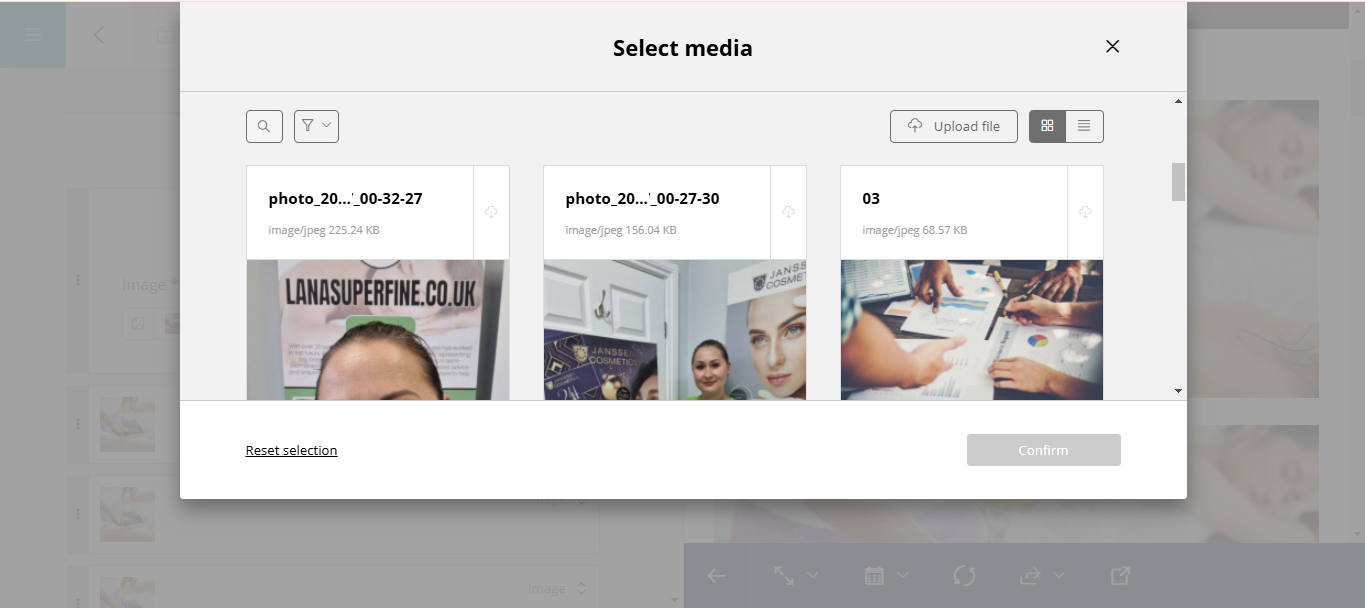
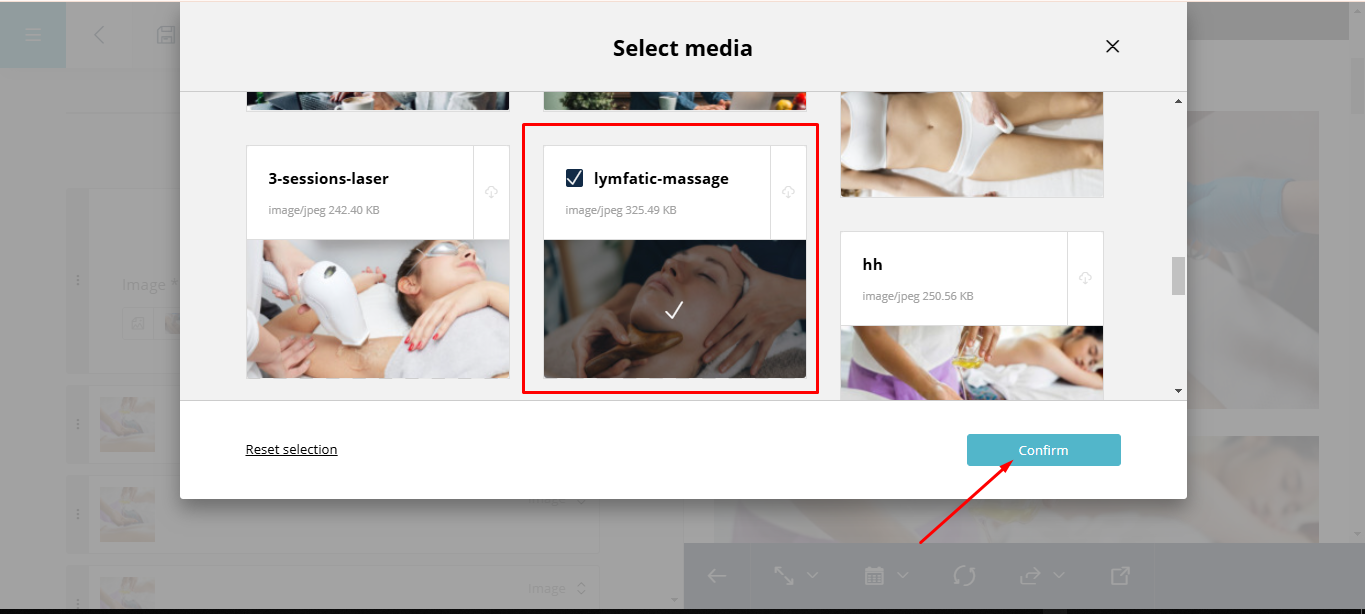
Select the desired image and confirm the selection:
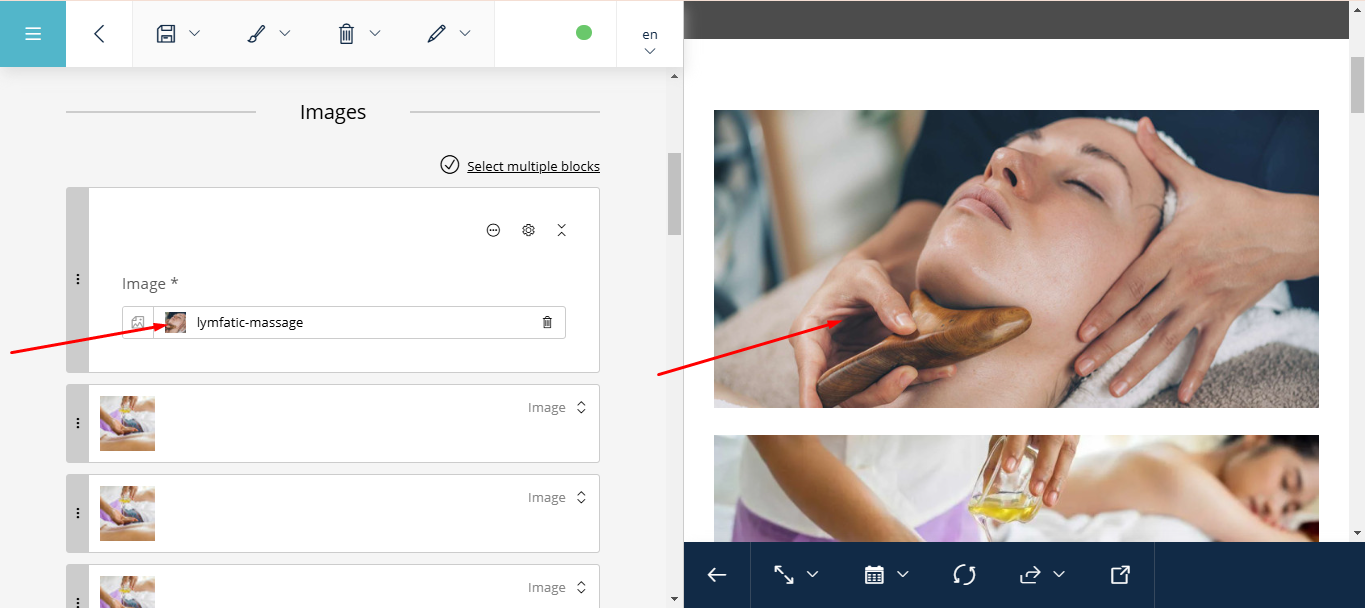
The image has changed:
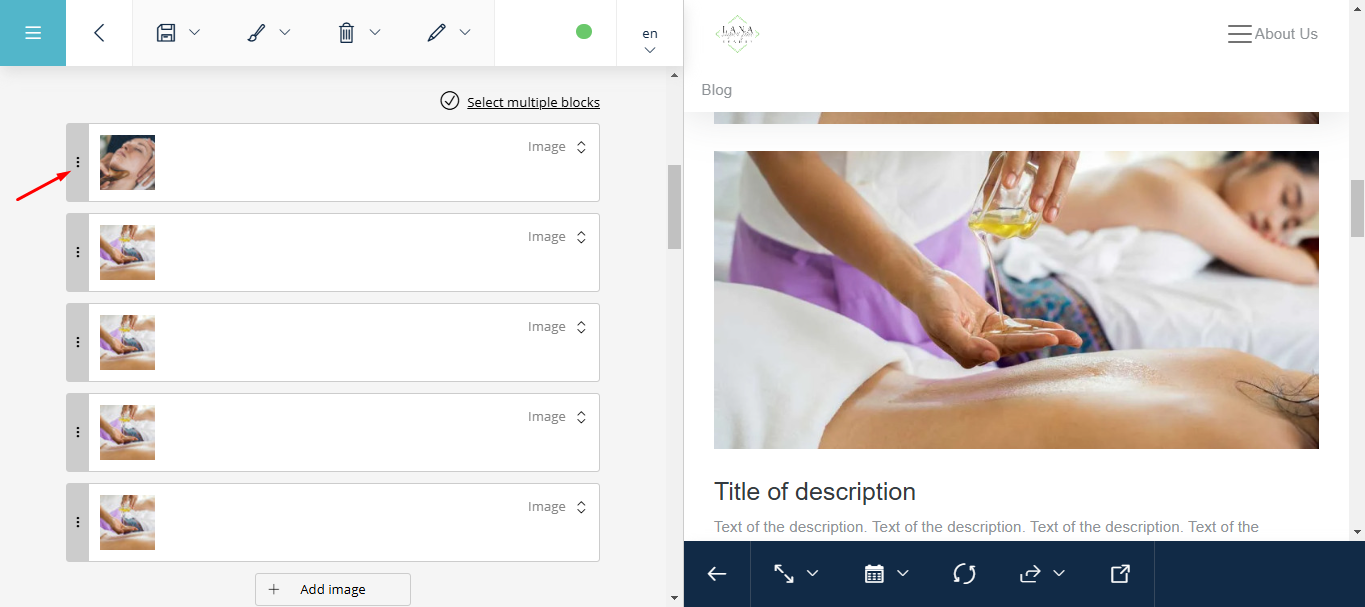
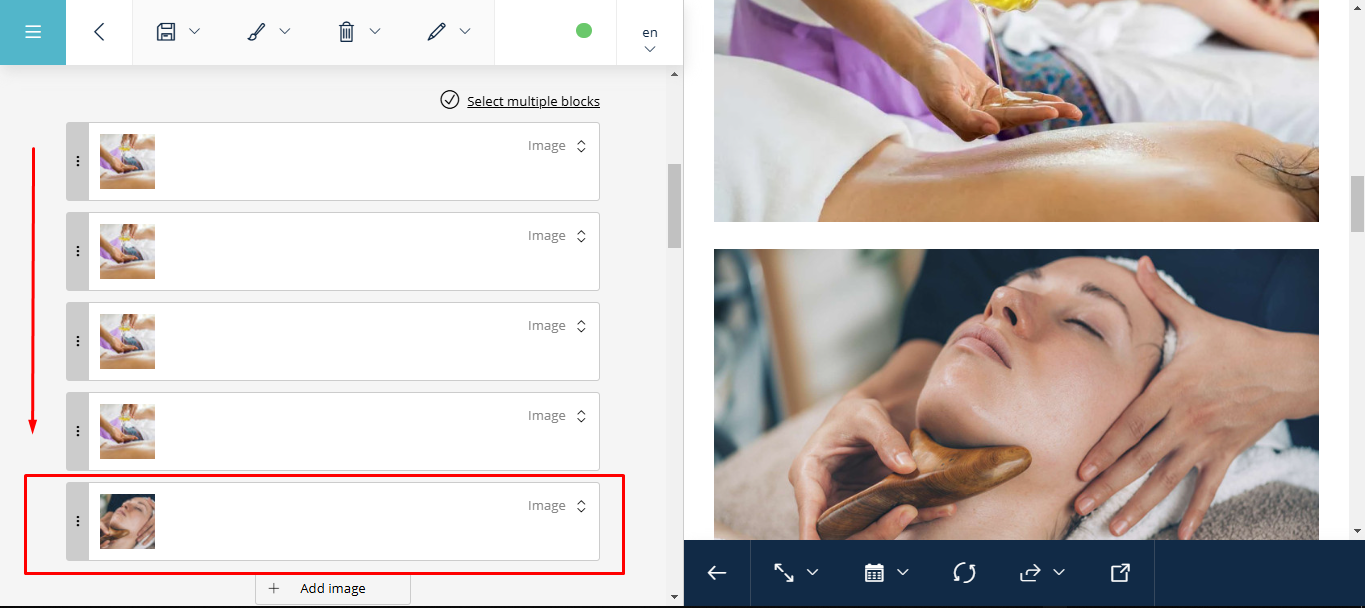
Using this button, we can change the order of the images and, in general, any blocks on the site:
Editing the Special Offer Description#
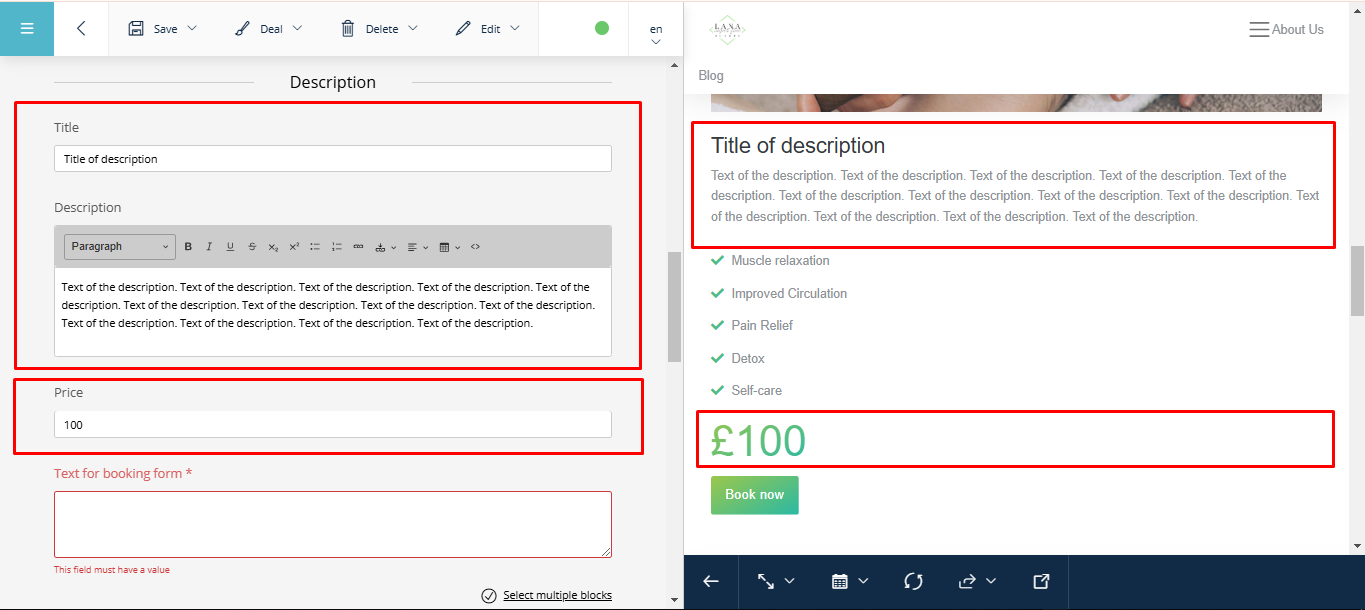
Next, we can edit the description of our Special Offer:
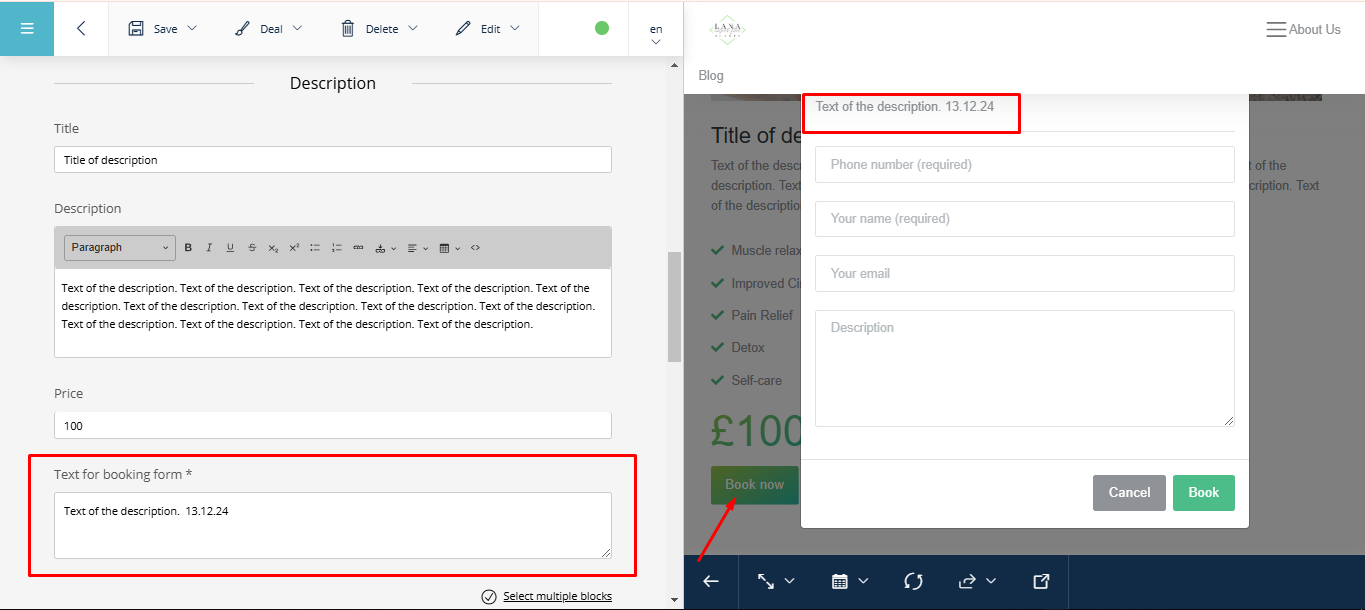
The « Text for booking form * » field corresponds to the description in the pop-up window when clicking the « Book now » button:
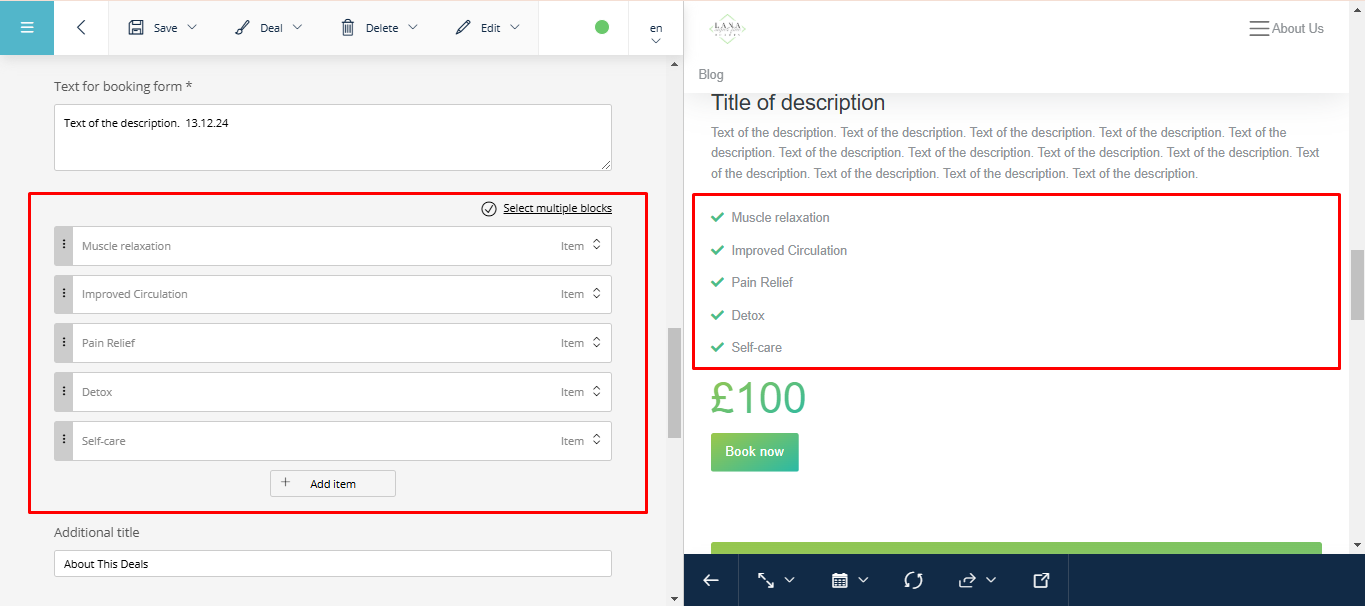
We proceed further down the page to edit the list:
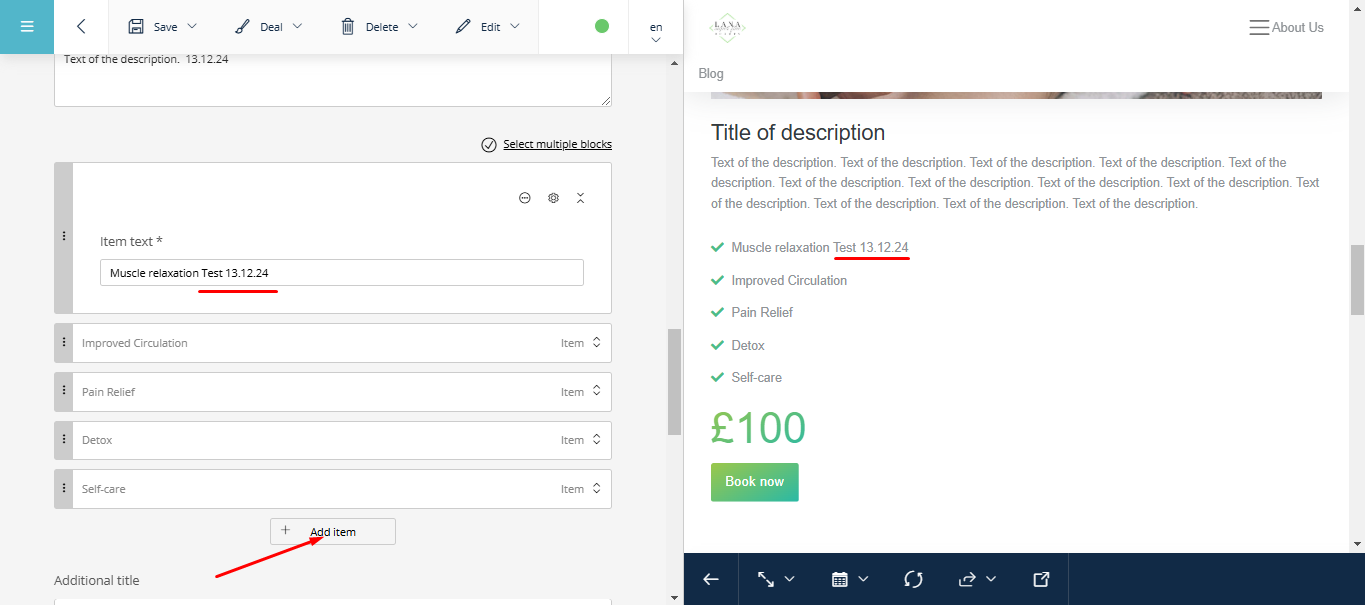
Each list item can be edited, and by clicking « add item », new items can be added:
Next, we can edit this block similarly to others, including text fonts, forms, etc.: