Blog#
The blog will contain articles. Let’s go over the process of adding a new article:
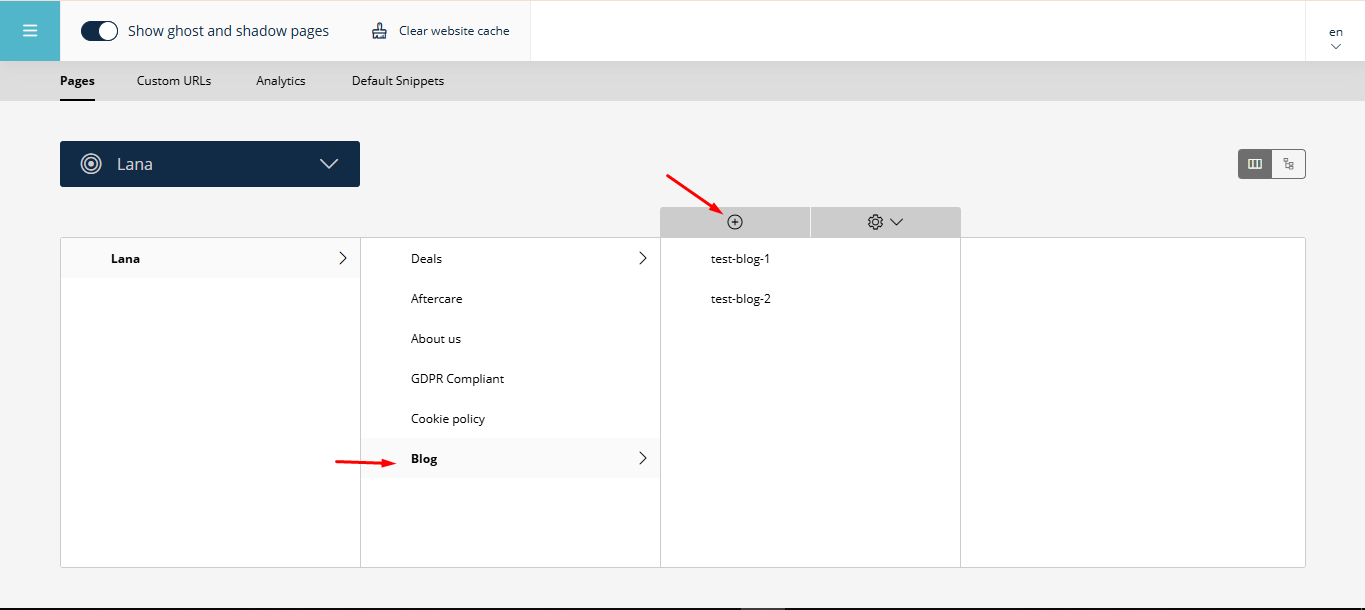
On the main panel, go to the « Blog » category, click on the « + » button, and add a new page for the upcoming article.
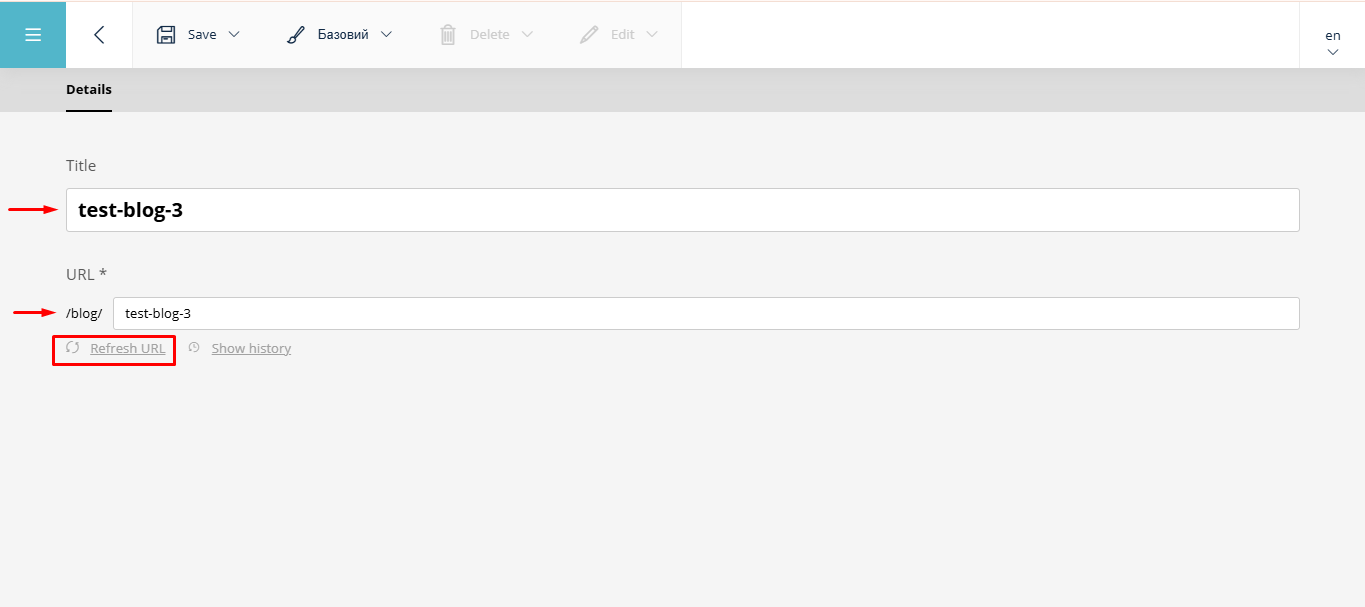
In the next window, enter the « title » for the page, and the URL will be automatically generated. You can also modify the URL if you change the « title ».
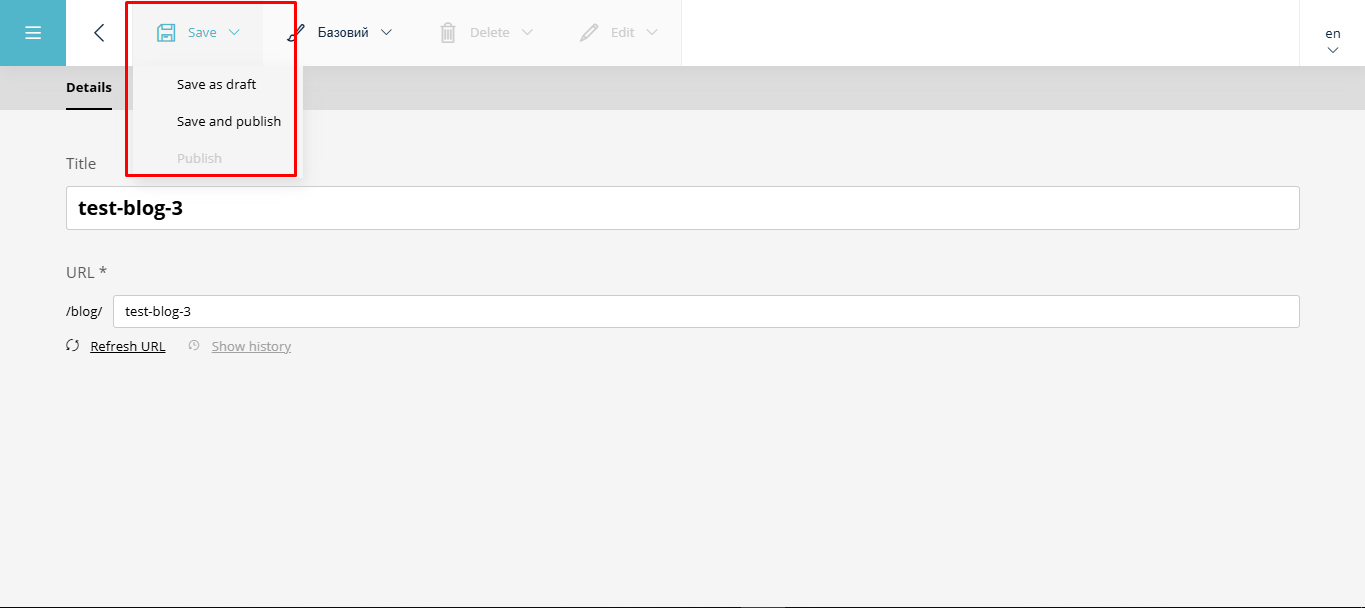
Save the created page.
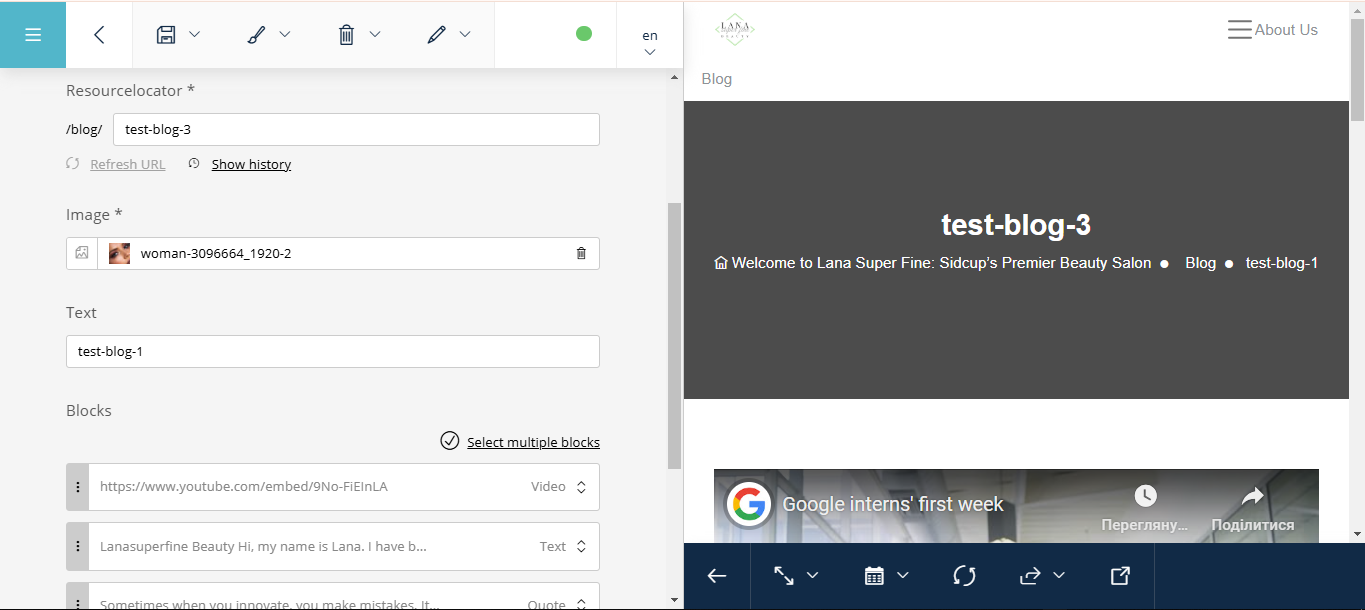
Next, go to the admin panel to edit the page and start adding content.
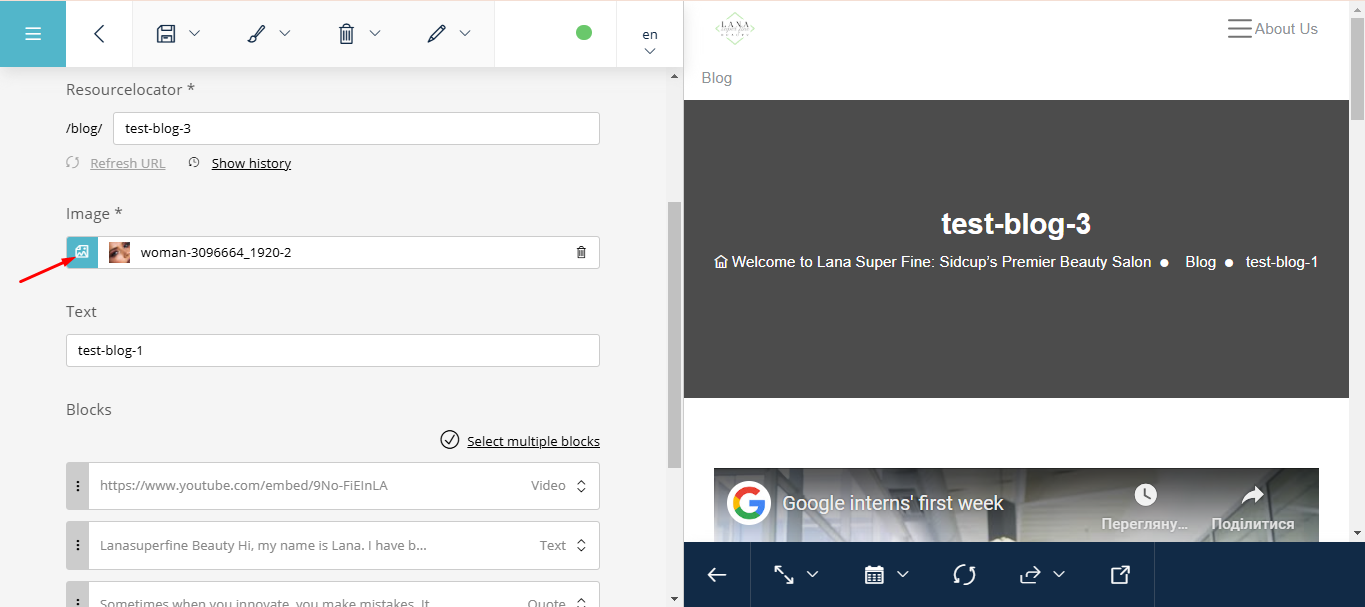
Adding an Image#
Click the corresponding button:
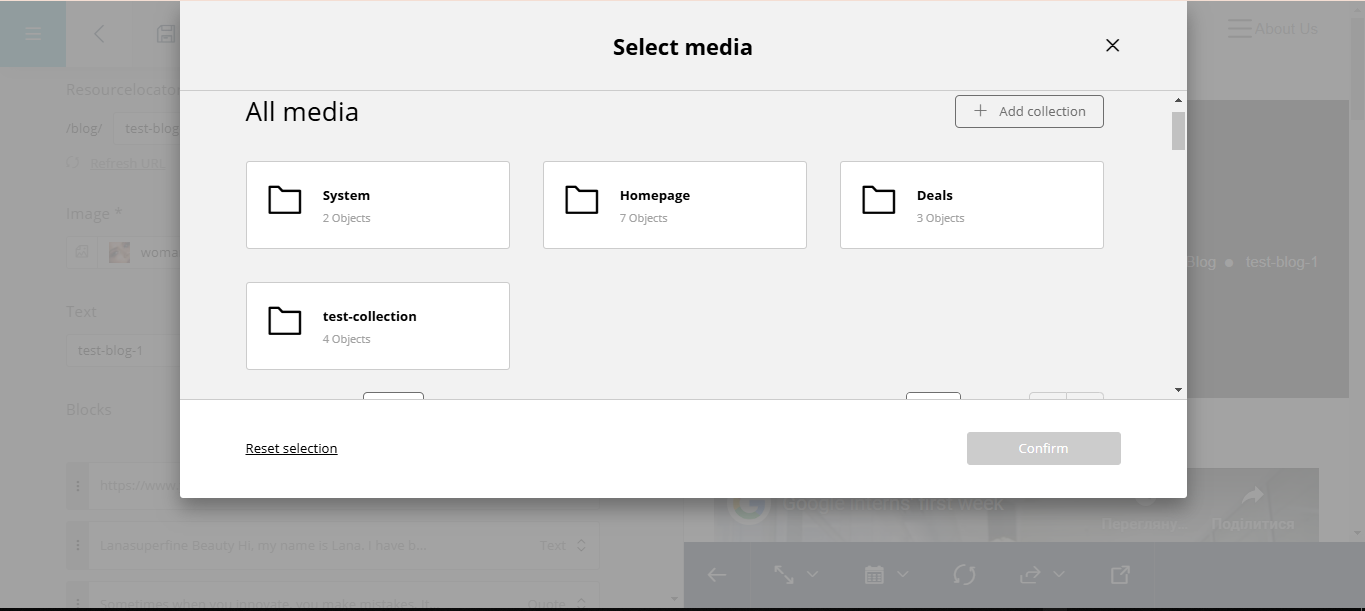
Choose the folder where the image is stored:
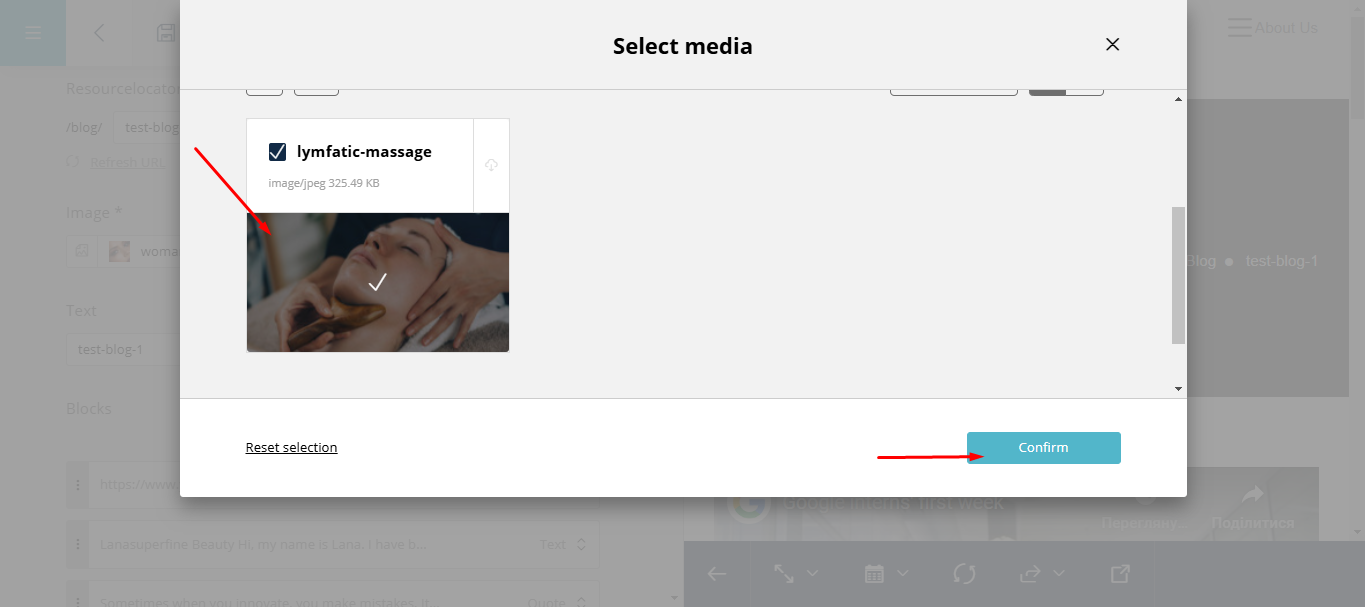
Add the file and click « Confirm ».
Adding Blocks to the Page#
There are 5 types of blocks:
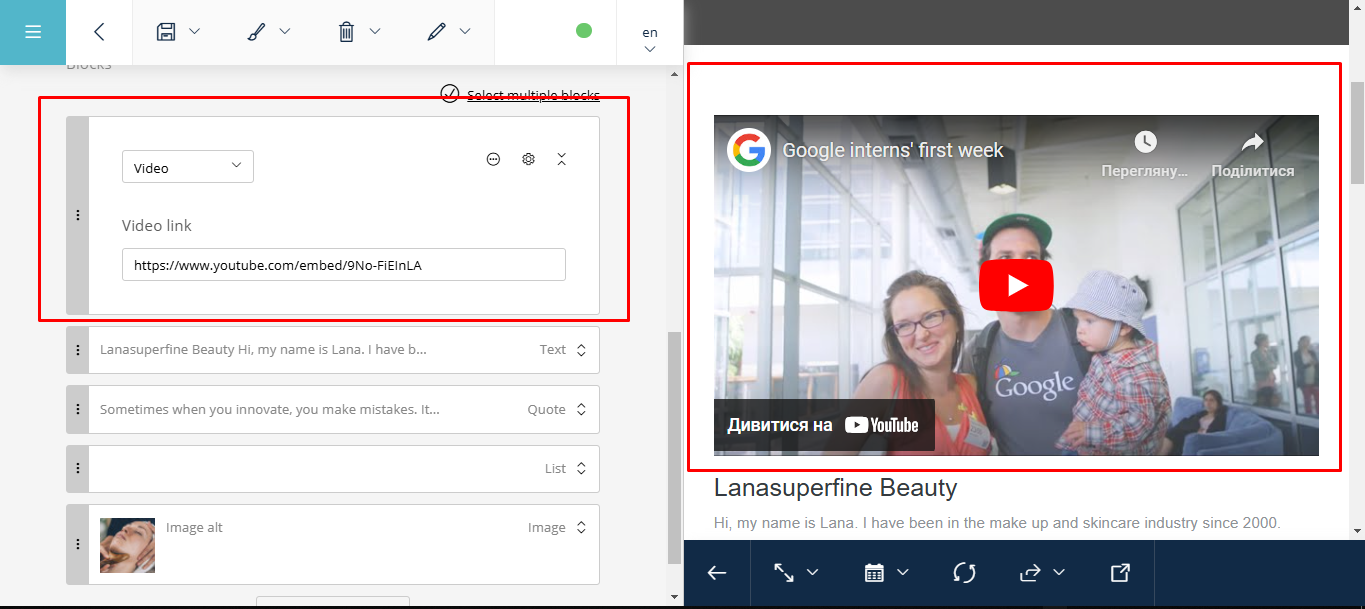
Video Block (Video)
Simply paste the YouTube video link in the corresponding field, and the video will be displayed on the website.
Text Block (Text)
For adding text content.
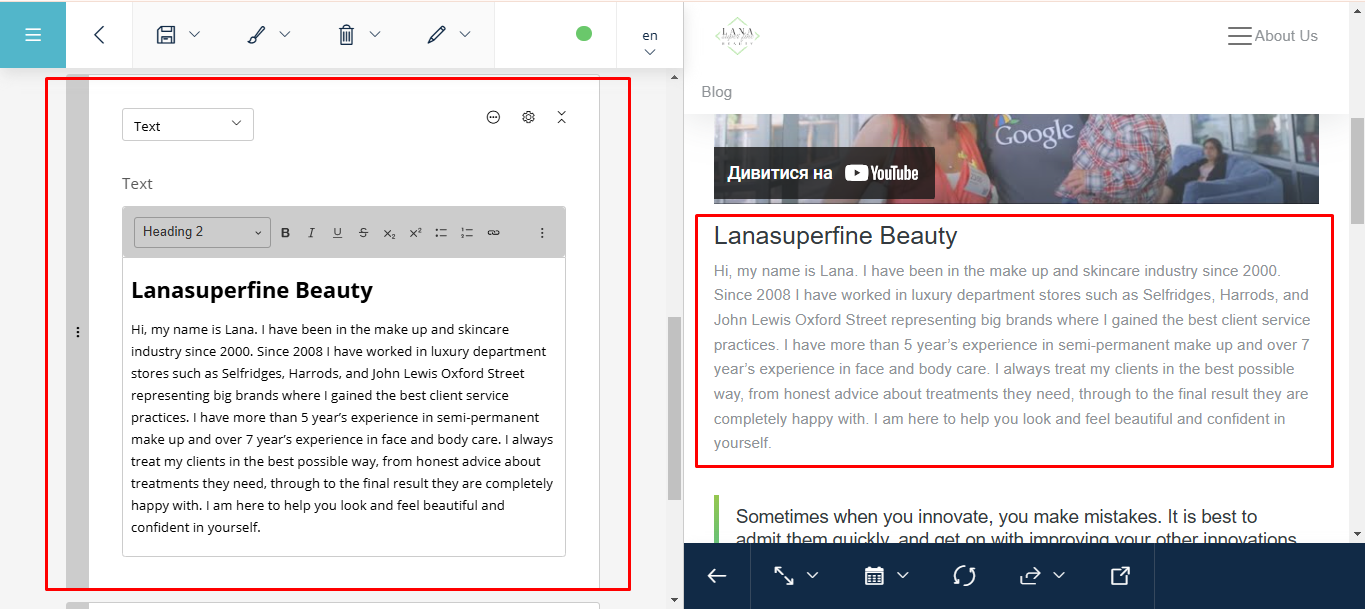
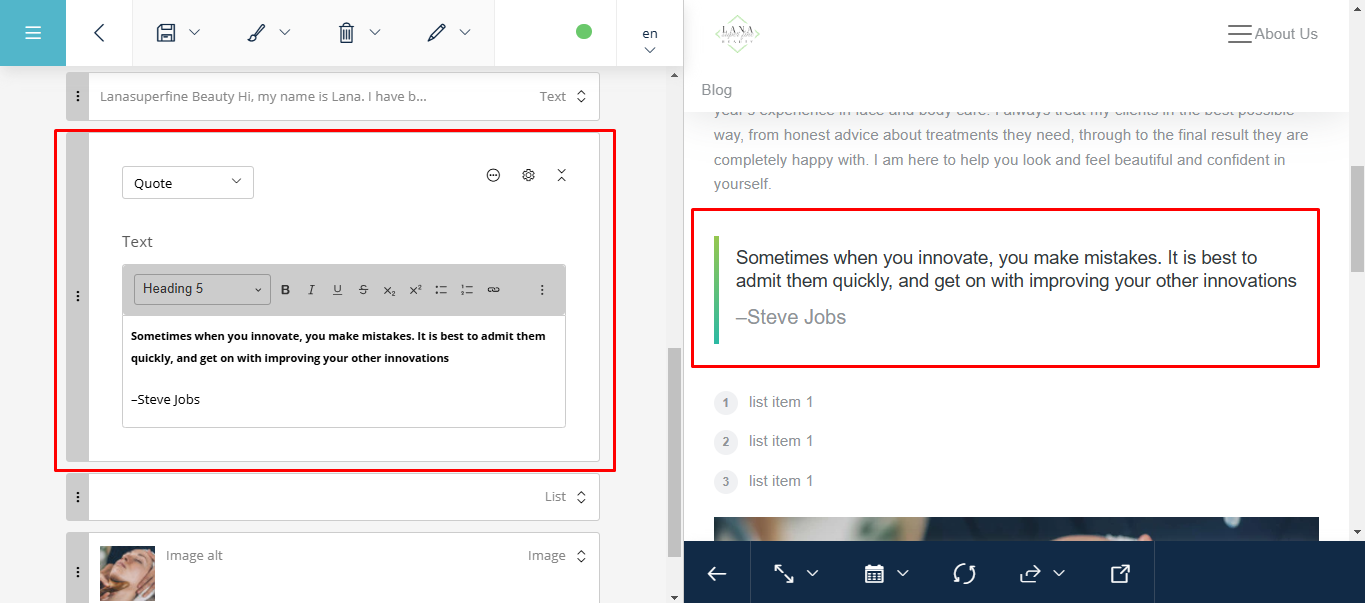
Quote Block (Quote)
List Block
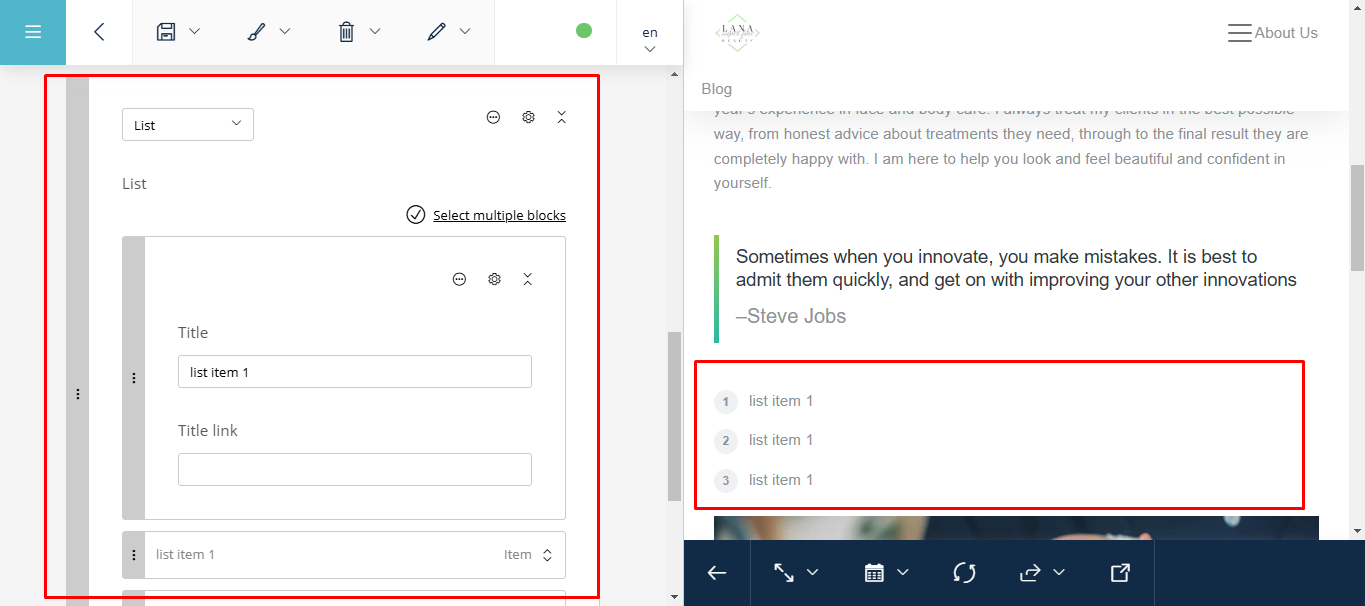
This block has smaller blocks for editing each point and adding links to them.
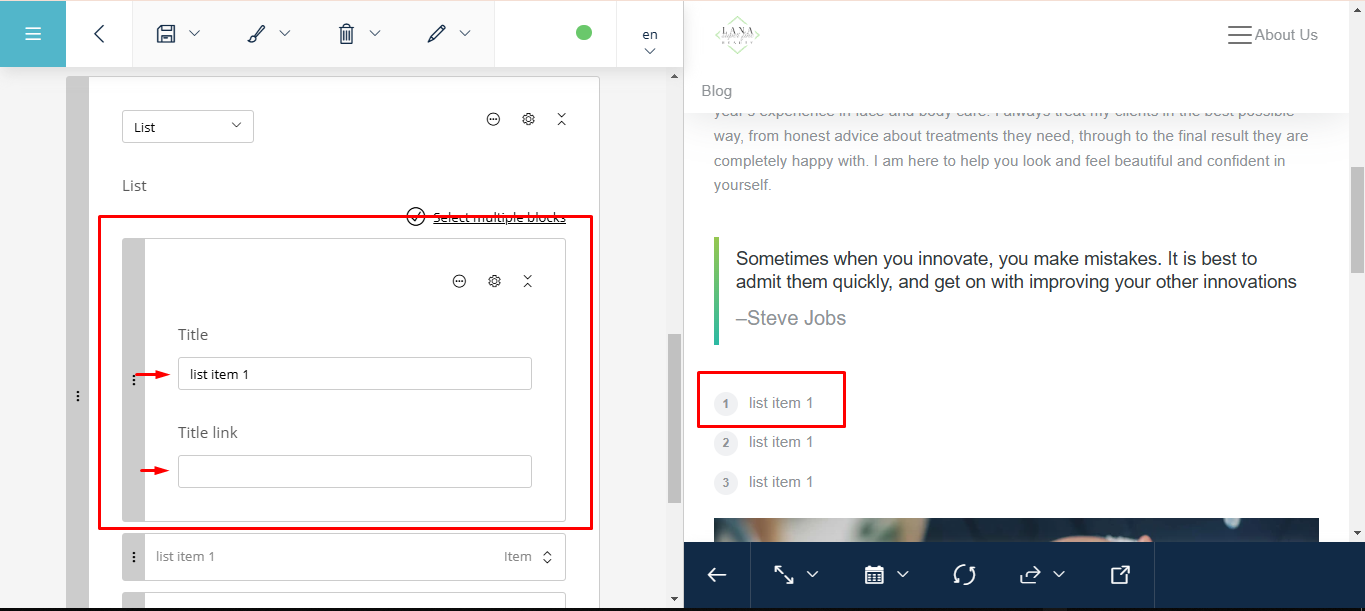
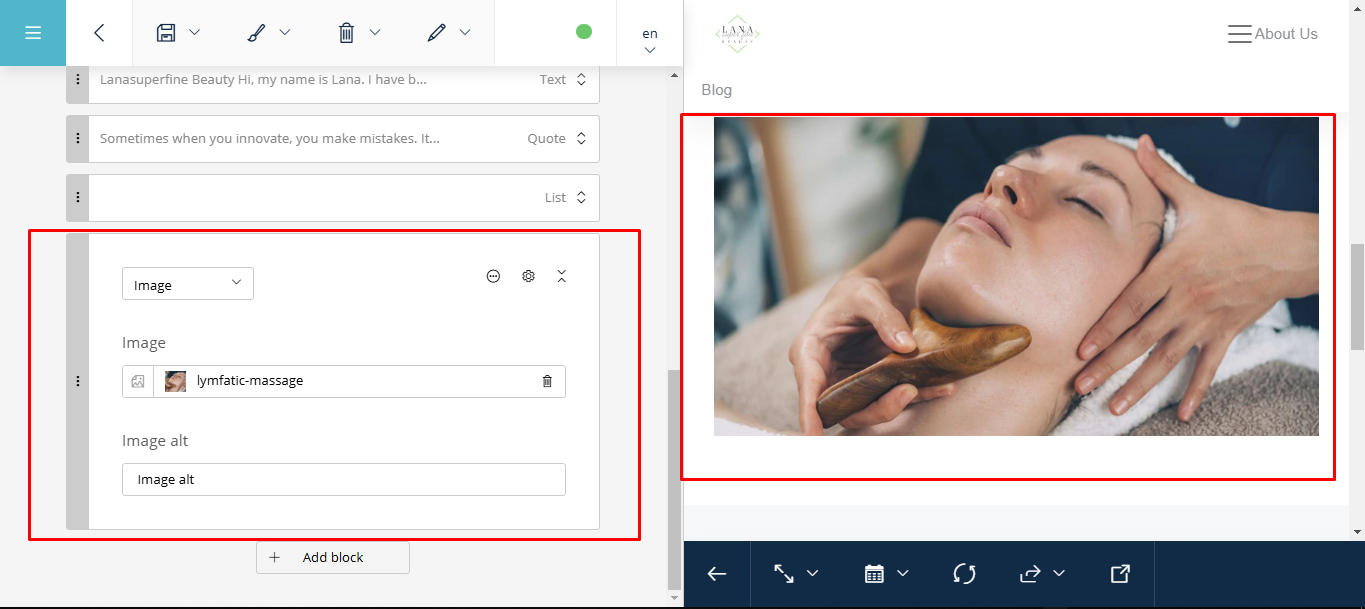
Image Block
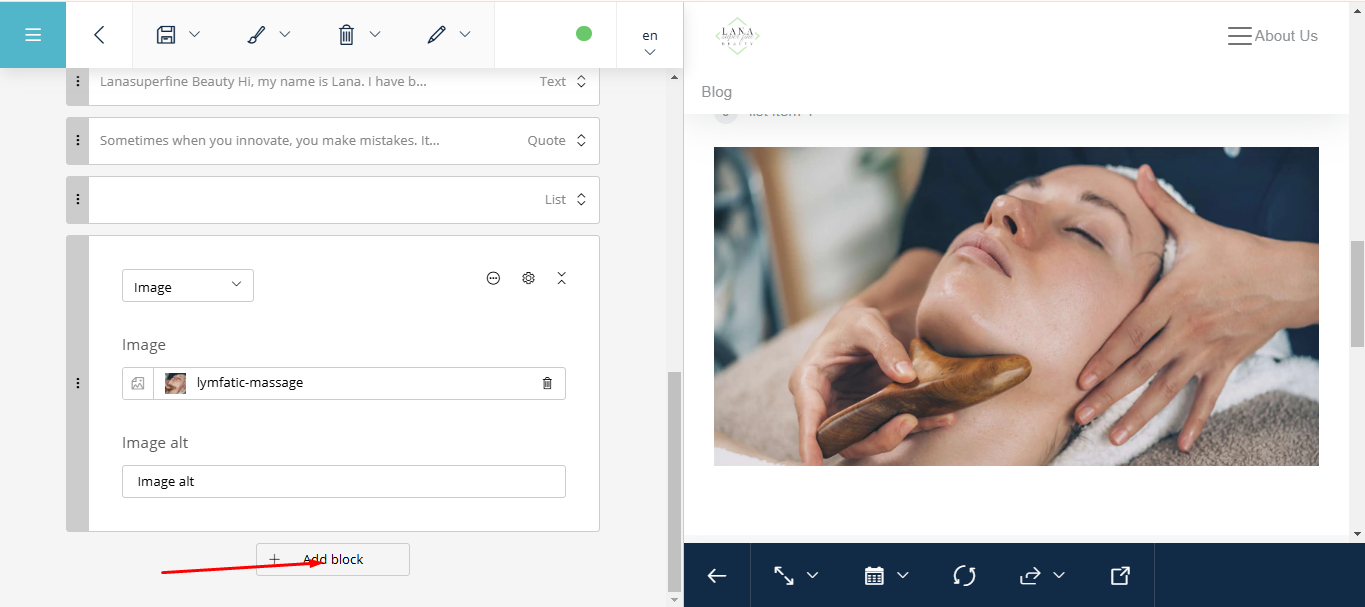
To add a block to the page, click the « Add block » button.
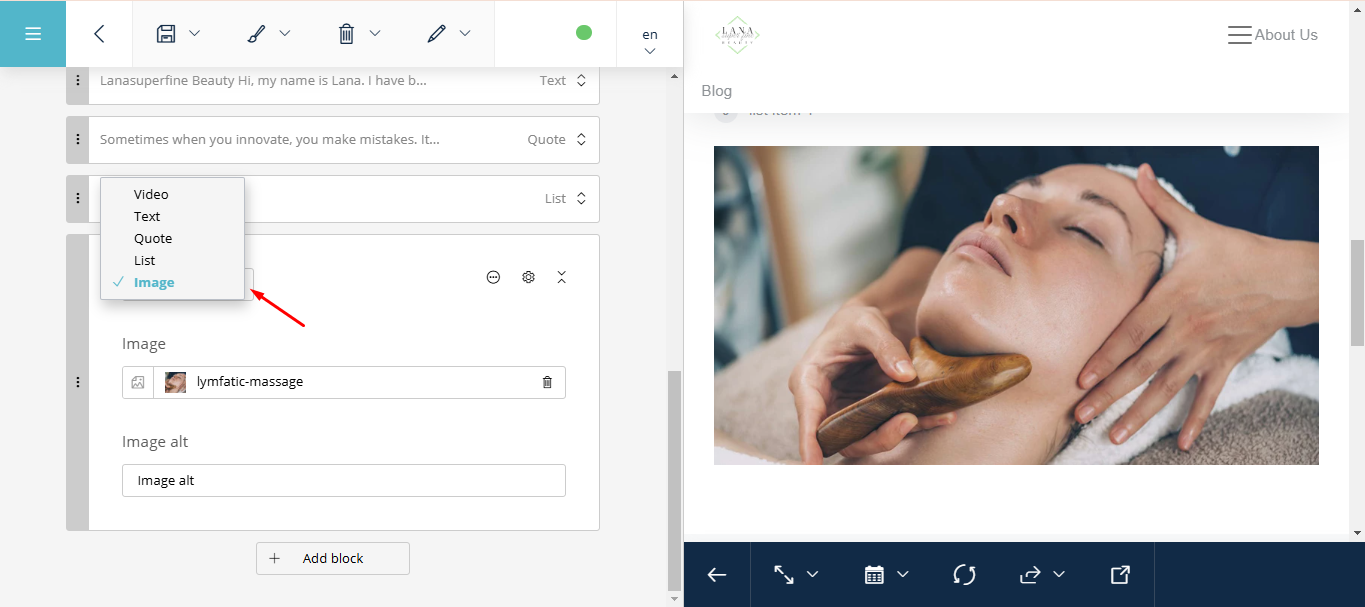
Select the block you need from the list.
If you need the same block, you can simply copy the existing one by clicking on the « three dots » button.
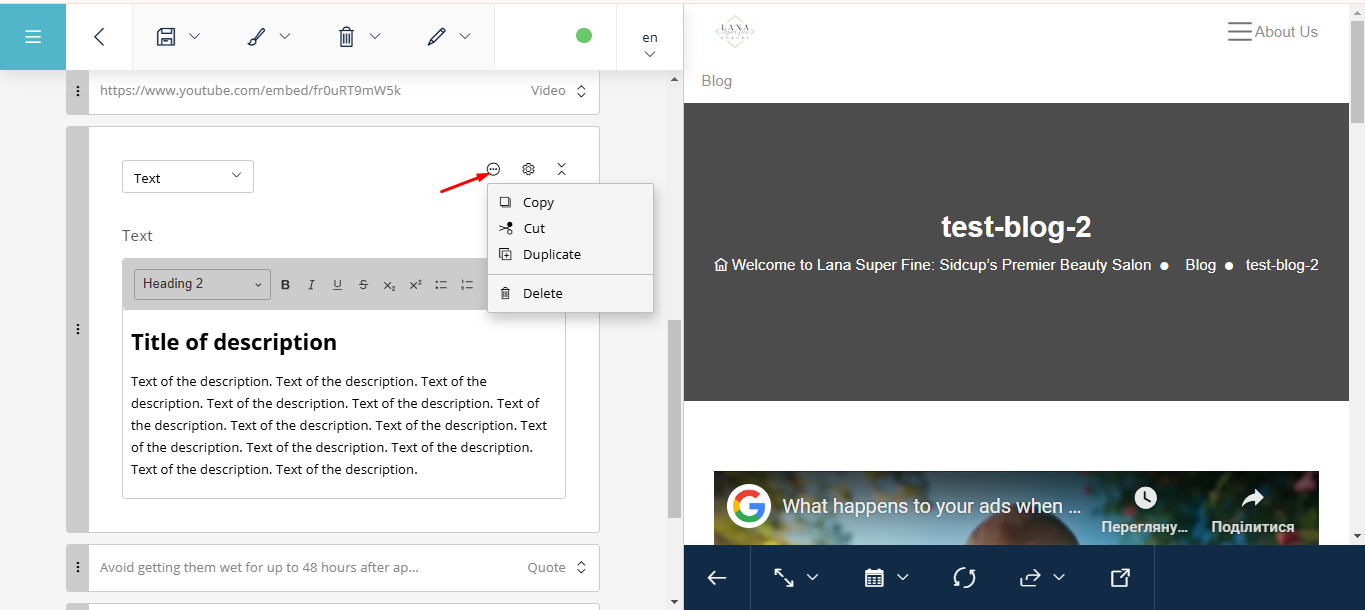
You can:
Copy,
Cut,
Duplicate, or
Delete the block.
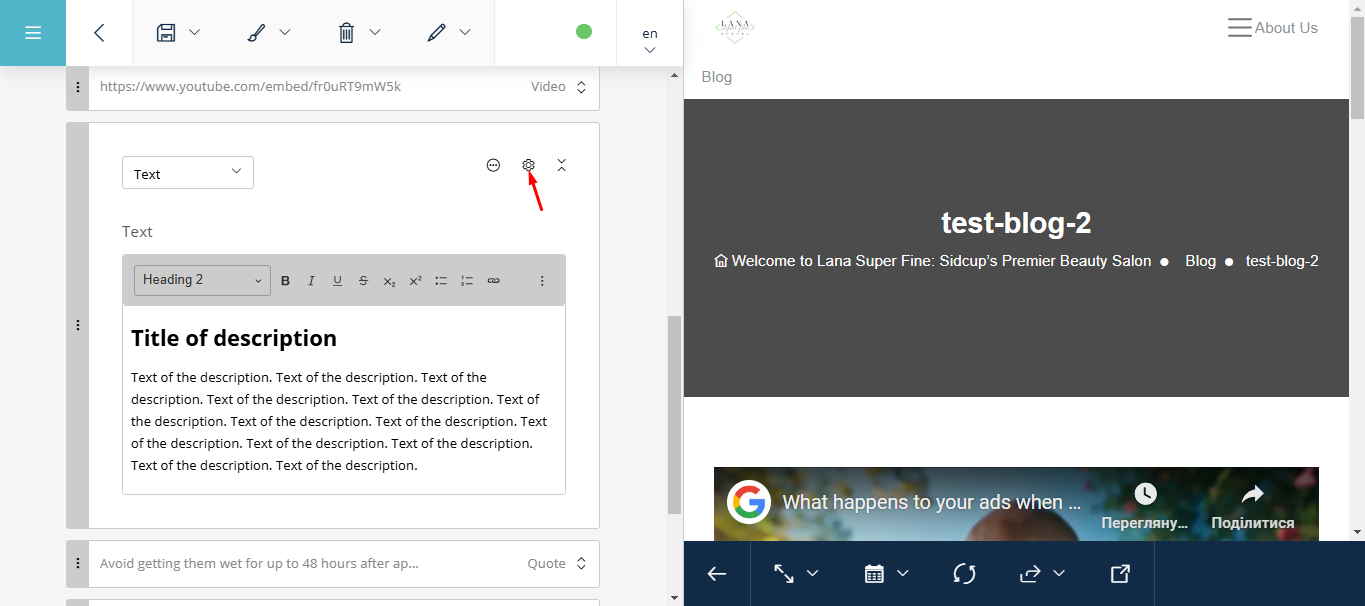
Also, by clicking the « gear » icon, you can hide the block from the site, but it will remain in the admin panel.
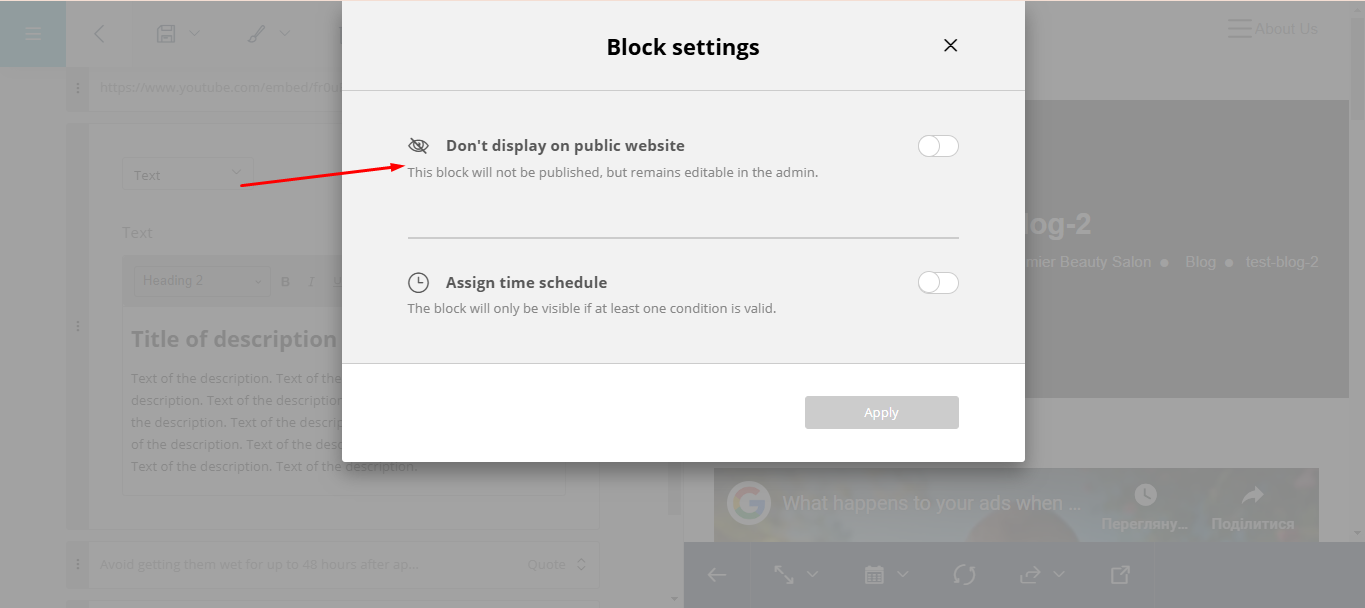
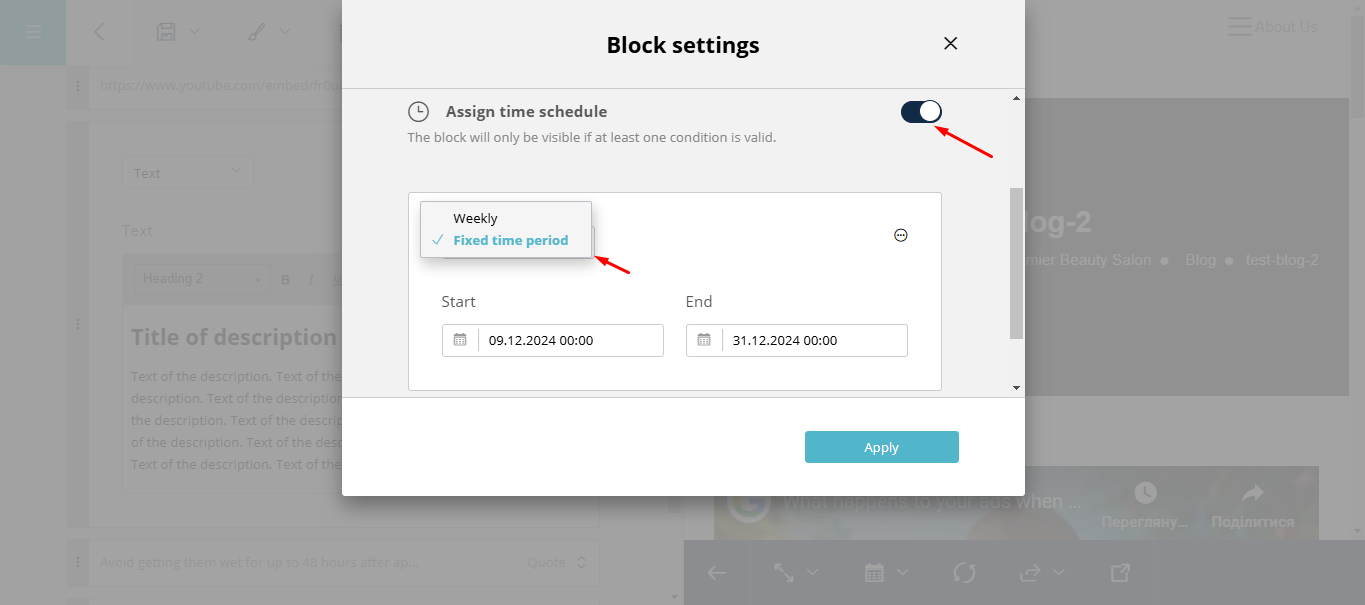
You can also set conditions for this block (auto-publish), for example, making it visible on the site only for a specific period or showing it from a specified date.
After adding a blog article, you need to fill in the « Excerpt and Taxonomies » page.
Complete all fields: a short description of the article, select categories, and add an image and an icon.
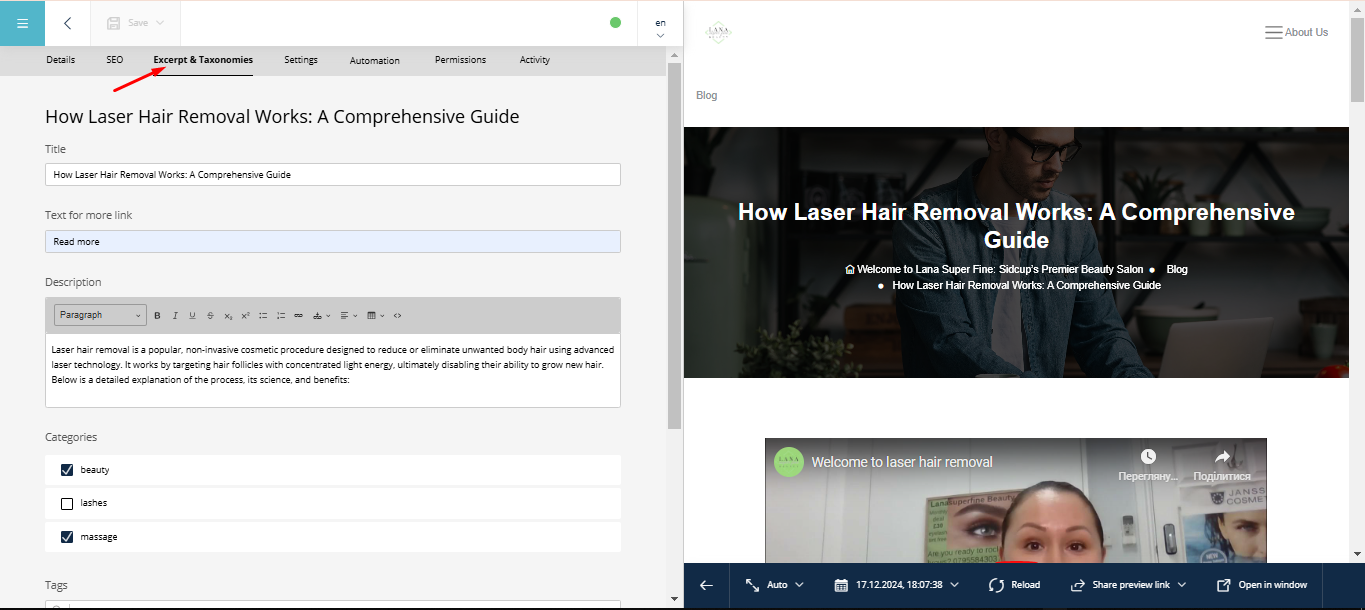
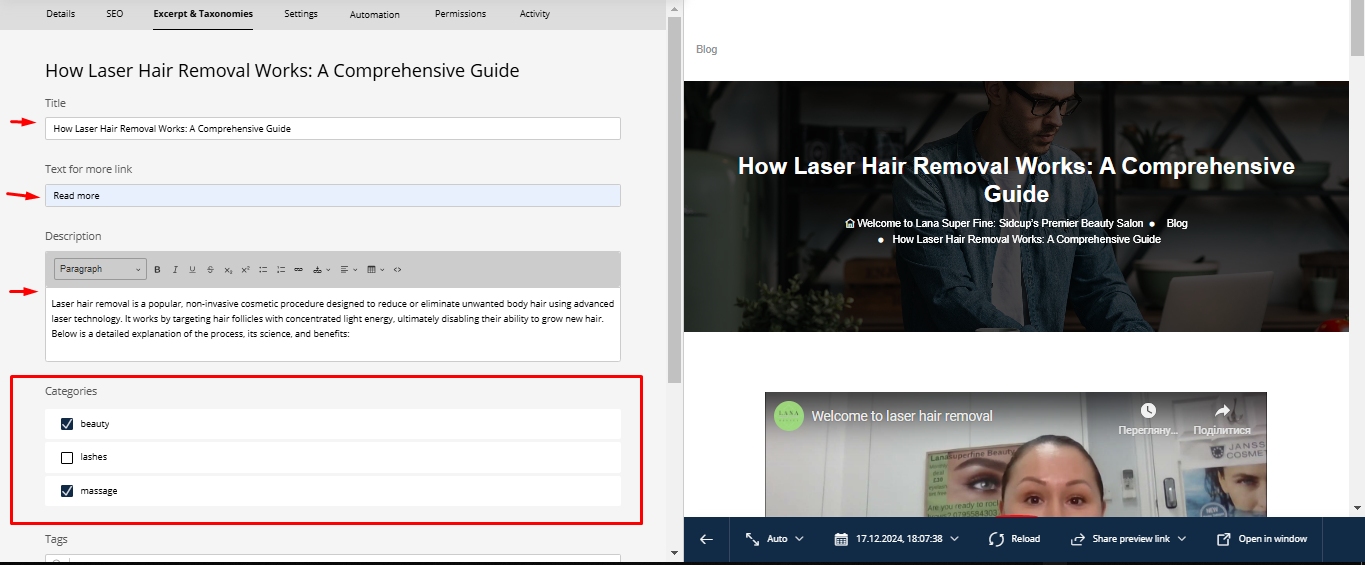
The « Excerpt and Taxonomies » page also needs to be filled out for service pages to ensure they display correctly on the main « Services » page, where the list of all our services is shown.